This post may contain affiliate links. If you use these links to buy something we may earn a commission at no extra cost to you. Thank you for your support!
Most freelancers don’t fail because they lack skills. They fail because they spend too much time on the wrong things: juggling a lot of tools that don’t talk to each other, chasing clients across platforms, and losing hours to admin tasks that should run on autopilot.
The best freelancer tools handle the repetitive stuff in the background so you can focus on the work that actually pays. In this guide, I’m sharing my top picks, the nine must-have tools I use daily to run Side Gig Accelerator, manage a team of nine, support over 300 active students, and still deliver high-quality client work without burning out.
When evaluating any tool, the criteria that matter most are price, scalability, reliability, ease of use, quality of support, and how little it disrupts the workflow you already have. The tools below have earned a permanent place in our stack.
The full list:
• ClickUp — Project Management Software
• Loom — Client Communication
• Zoom — Client Calls and Meetings
• Google Drive — File Storage and Sharing
• Canva — Visual Content and Design
• Claude.ai — AI-Assisted Writing and Research
• QuillBot — Editing and Paraphrasing
• Wise — International Payments
• Google Calendar — Scheduling and Time Management
What Makes a Freelancer Tool Worth Using?
The best tools solve a real problem without creating new ones. Every freelancer, regardless of niche or experience level, will eventually need to handle project management, client communication, file storage, design, writing support, payments, and scheduling.
These are the categories that make or break your day-to-day workflow, and the popular tools on this list address all of them.
Every tool on this list is something I actively use. Most offer a free plan, so you can test before committing to a paid tier. Start with whatever addresses your most pressing bottleneck today and build your stack deliberately from there. When it comes to your specific needs, one well-chosen tool will always outperform a lot of tools used poorly.
More tools is rarely the answer. The discipline is in choosing fewer, better ones.
1. ClickUp
Best Freelancer Tools: ClickUp for Project Management Software
Overview
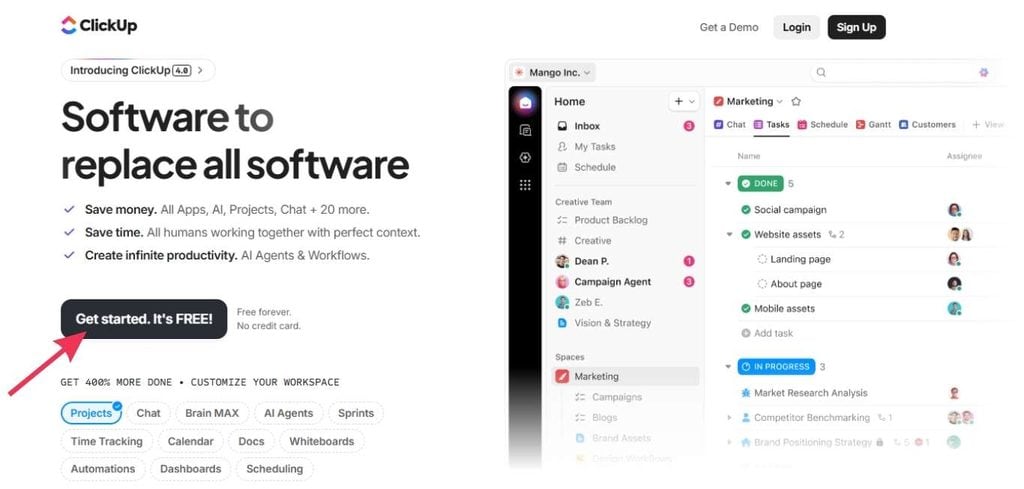
ClickUp is a project management platform and one of the most powerful tools available today that consolidates tasks, documentation, goals, whiteboards, time tracking, and automations in a single all-in-one solution.
It is built for teams that need to manage complex workflows, SOPs, and cross-functional collaboration without constantly switching tools.
If you have ever had a hard time keeping track of what your team is working on across different projects, this is the right platform to look at.
Who It’s For
Small business owners, freelancers managing multiple clients, and growing teams that deal with ongoing projects, client deliverables, and process documentation on a daily basis.
It works equally well as project management software for solopreneurs and as a full team operating system.
Key Benefits
- All-in-one workspace for tasks, docs, goals, and time tracking—not a simple to-do list, but a complete operating system
- Multiple views, including list, board, Gantt, and calendar, to match how your team actually works
- Automations that handle repetitive admin tasks so you spend less time on the things that don’t move the needle
- Native integrations with Google Drive, Google Docs, Google Sheets, and Google Calendar
- Hundreds of pre-built templates so you’re not creating workflows from zero
- Built-in AI assistant for writing, summarizing, and automating tasks
- Generous free plan to get started without a financial commitment
Pros & Cons
| Pros | Cons |
| Genuinely replaces a lot of tools in one platform, not just another productivity tool | It can feel overwhelming if you try to activate every feature at once |
| Highly customizable views, statuses, and custom fields | Load times can be noticeably slow on heavier workspaces |
| Powerful automations once the initial setup is done | The mobile app feels limited compared to desktop |
| Excellent for teams managing SOPs and process documentation | Overly complex if your specific needs are simple personal task management |
| Templates significantly reduce the time needed to build new workflows | Performance issues can occur on larger, data-heavy workspaces |
| Scales cleanly from solo freelancer to a growing team | Overkill if you genuinely just need a simple to-do list |
| The desktop app delivers the full feature set |
User Experience
Best Freelancer Tools: ClickUp Dashboard
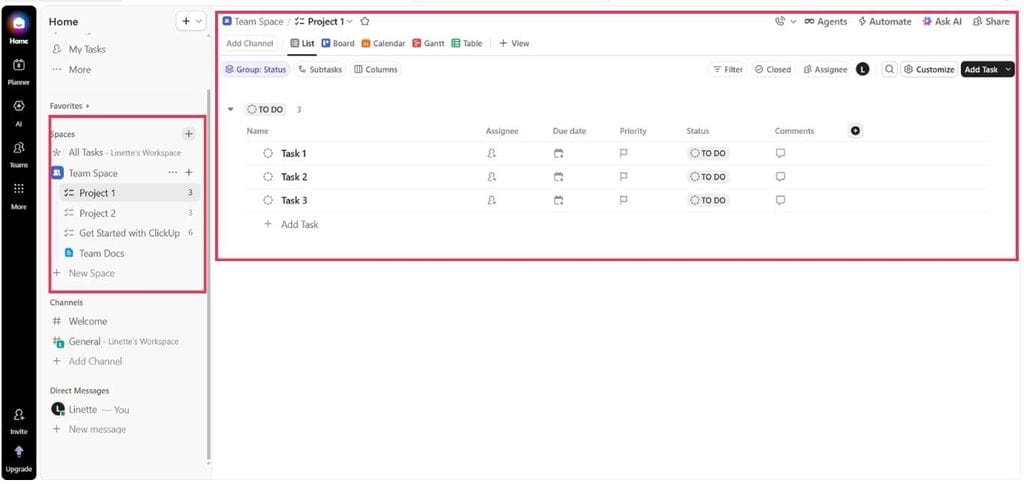
ClickUp has a solid desktop experience with a user-friendly interface, but the learning curve is real. First-time users typically need two to three weeks to feel comfortable navigating the platform before they start unlocking its real value. That said, once it clicks, it makes a big difference to how smoothly a team operates.
Pricing
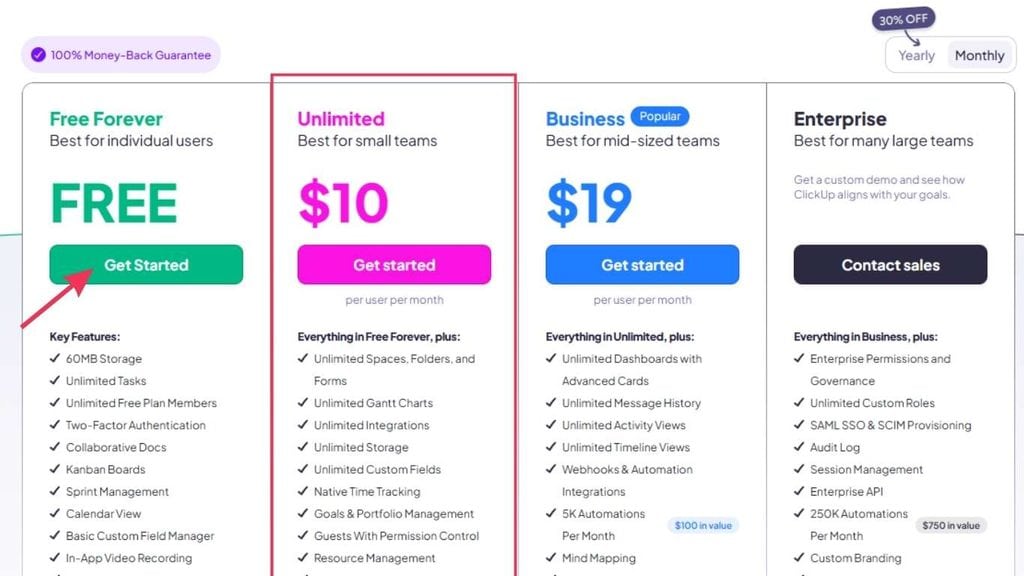
Best Freelancer Tools: ClickUp Pricing
Free plan available. Paid plans start at $10 per user per month, with a free trial available on higher tiers.
My Take
I have been using ClickUp for over three years, and it fundamentally changed how I think about team operations. We use it to manage over 300 students, our full SOP library, and internal team workflows. It touches almost every part of how we run the business.
The most common mistake I see new users make is trying to configure every advanced feature on day one. Start with the basics: tasks, statuses, and one workspace. Learn how the platform thinks, then layer in automations and third-party tools over time when needed.
If you only need a simple to-do list, ClickUp is more than you need. But for client management, team coordination, and process documentation at scale, it is one of the most capable tools on the market and one of my top picks for freelancers who are serious about growing.
2. Loom
Best Freelancer Tools: Loom for Client Communication
Overview
Loom is a screen and webcam recording tool designed for async video communication, and it doubles as a voice recording tool for anyone who prefers to explain rather than type.
Instead of scheduling a meeting to walk someone through something, you record a short video, share a link, and both parties move forward on their own schedule.
I use it for client walkthroughs, team updates, onboarding, SOPs, and feedback. Any situation where writing it out would take too long and booking a live call would be overkill. It is one of the best communication tools I have added to my stack.
Who It’s For
Remote teams, coaches, freelancers, and small businesses that communicate a lot but want to cut down on synchronous meetings and lengthy written feedback threads.
If you have a hard time keeping clients in the loop without spending hours on calls, Loom is a great option.
Key Benefits
- Replace short, low-stakes meetings with async video your team watches on their own schedule; spend less time in meetings, more time doing the work
- AI-generated transcripts and summaries turn recordings into instant documentation
- Screen and webcam recording with minimal setup — beginner-friendly from the first session
- Easy cloud-based link sharing, no file management required — share files and feedback in one link
- Direct integrations with Slack, Google Workspace, Notion, and Microsoft Teams
Pros & Cons
| Pros | Cons |
| Fast and simple to record and share | The free plan caps recordings at 5 minutes |
| AI transcripts and summaries save real time on documentation | Requires a stable internet connection for reliable recording |
| Ideal for feedback, walkthroughs, and training delivery | Some mobile and restricted viewers need to sign in to watch |
| Eliminates a significant number of unnecessary meetings | Occasional desktop app stability issues and upload failures |
| Free plan available | Not designed for high-production or edited video content |
User Experience
Best Freelancer Tools: Loom Dashboard
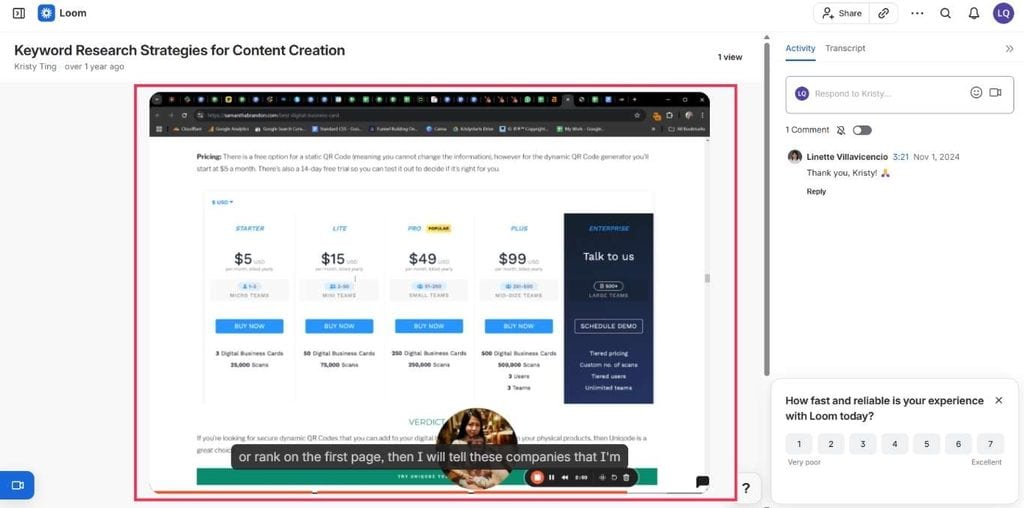
Loom is straightforward. Install, hit record, choose your screen or camera settings, finish the recording, and share the link. The friction is minimal, which is the point.
Pricing
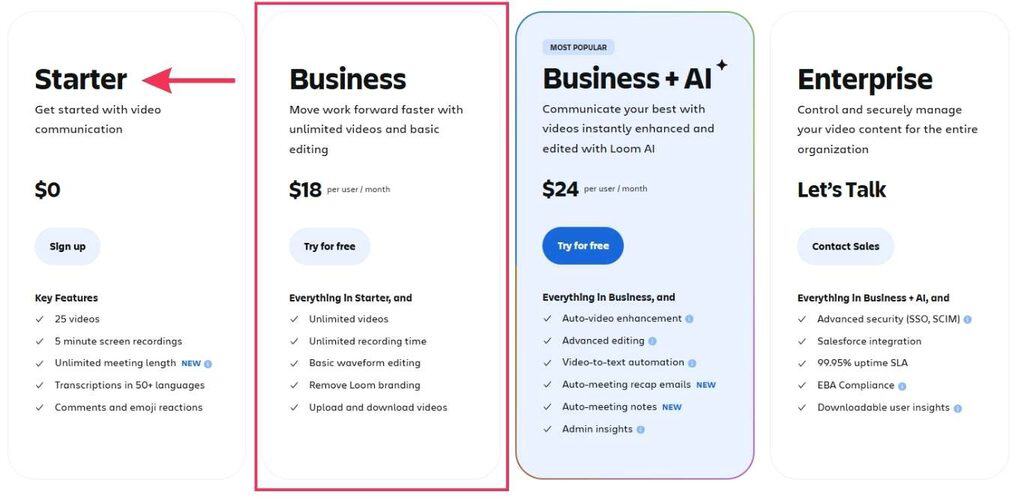
Best Freelancer Tools: Loom Pricing
Free plan available, though recordings are limited to 5 minutes. Paid plans start at $18 per user per month and remove the time cap. The step up to $24 unlocks AI features, including transcripts and summaries.
My Take
Loom is one of those tools I didn’t expect to depend on as much as I do. When students ask for feedback, typing a thorough response takes far too long. I record it once, send the link, and they can re-watch it as many times as they need.
I use the same approach internally when I need to walk my team through a new process or explain a change to an SOP. It’s faster than writing, less formal than a meeting, and leaves a record everyone can reference later.
The 5-minute cap on the free plan is a genuine limitation for anything detailed. If you record longer walkthroughs regularly, the paid plan is worth it. For small teams sharing ideas and quick feedback, the free version is a solid starting point.
3. Zoom
Best Freelancer Tools: Zoom for Client Calls and Meetings
Overview
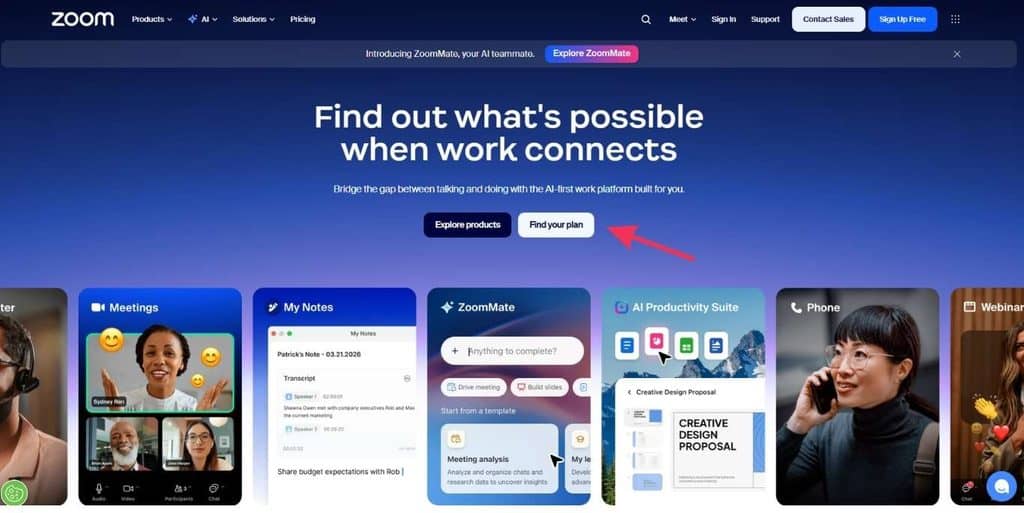
Zoom has become the default for client calls, coaching sessions, and online classes for a good reason: most people already have it installed. That familiarity eliminates the friction you get when you ask a potential client to download something new before a discovery call.
Beyond video calls, it has expanded into phone, document sharing, and team chat, though those added layers make the interface busier than it needs to be for most use cases. For client calls and coaching, the core product is what you actually need.
Who It’s For
Small teams, coaches, trainers, agencies, and freelancers who need a dependable way to meet with clients. If your clients tend to be non-technical or less comfortable with technology in general, Zoom is almost always the path of least resistance.
It integrates naturally with Google Meet for teams already in the Google Workspace ecosystem, though most client-facing calls in my business run on Zoom by default.
Key Benefits
- Familiar to most clients and they can join via a browser link without creating an account
- Reliable audio and video across client calls, webinars, and coaching sessions
- Expanded workspace features including Zoom Phone, Docs, whiteboards, and cloud file sharing
- Scales from a basic 1-on-1 coaching session up to enterprise webinars with up to 10,000 participants
- Breakout rooms, transcripts, and recordings that save locally or to the cloud
Pros & Cons
| Pros | Cons |
| Most clients are already familiar with it | The free plan limits all meetings to 40 minutes regardless of size |
| Reliable and consistent performance on desktop | The mobile app is noticeably limited compared to the desktop version |
| Strong for client calls, coaching sessions, and online classes | Recent chat interface updates have created navigation friction for many users |
| Wide product suite available if you need more than video calls | Feels bloated with features most users will never need |
| Free plan available for basic use | Transcription accuracy issues have been reported regularly |
User Experience
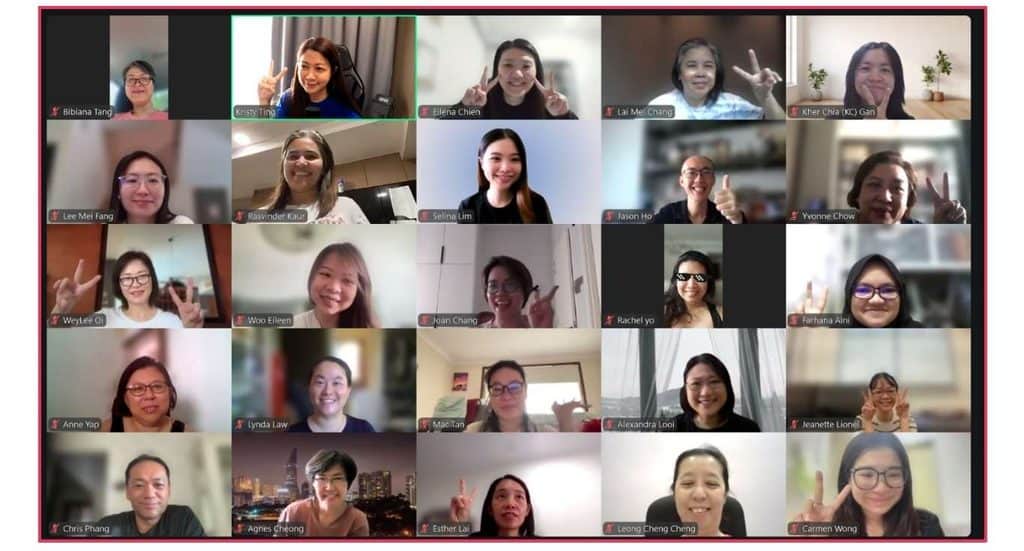
Best Freelancer Tools: Zoom Meeting Dashboard
Zoom is reliable and familiar for most participants, which removes a significant amount of pre-call friction. One small thing my students genuinely enjoy is swapping out their background images during calls. It’s a minor feature, but it makes sessions feel a little less transactional and a little more personal.
Pricing
Best Freelancer Tools: Zoom Pricing
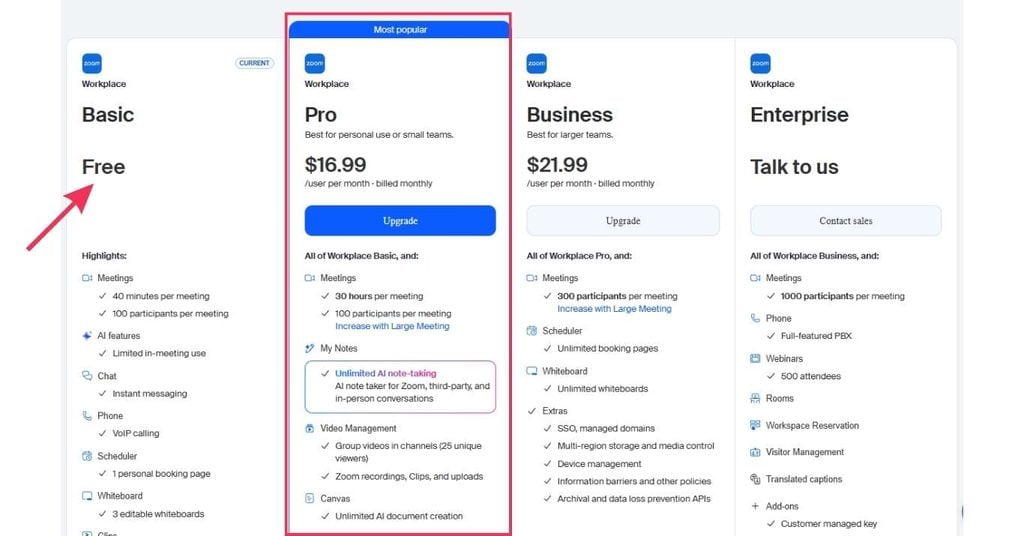
The free plan covers basic meetings up to 40 minutes. Paid plans start at $16.99 per user per month, with pricing scaling up for webinar hosting, phone features, and additional add-ons.
My Take
I run almost all my coaching calls and client meetings on Zoom, and the reason is simple: it works. Clients show up, join without friction, and we get into the session without a 10-minute onboarding conversation.
For straightforward video calls and client-facing meetings, it remains one of the most dependable options available. The feature bloat is a fair criticism, but if you stick to using it for what it was originally built for, it rarely lets you down.
4. Google Drive
Best Freelancer Tools: Google Drive for File Storage and Sharing
Overview
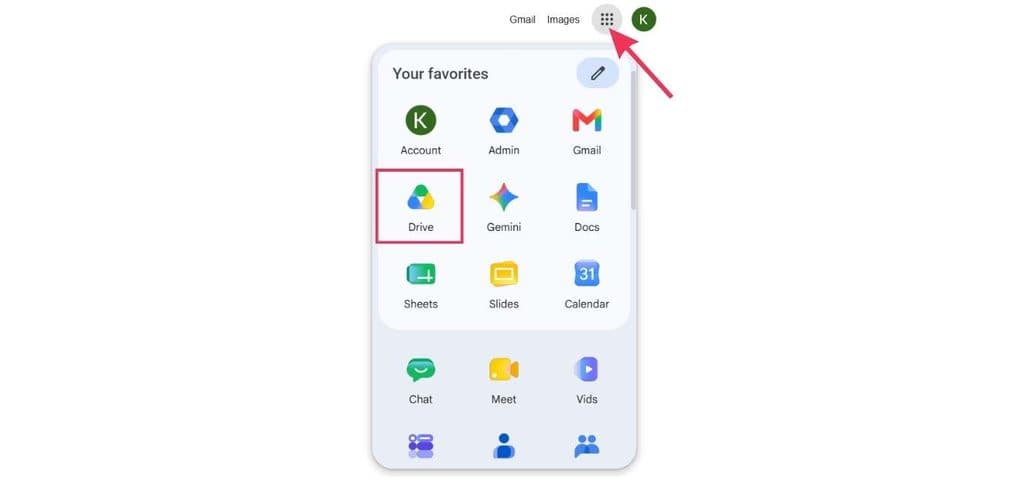
Google Drive is one of the most widely adopted cloud storage and file-sharing platforms available today. It works across all devices, integrates natively with Google Docs, Google Sheets, Slides, and Google Meet, and makes real-time team collaboration genuinely simple.
For freelancers who need to share files with clients quickly and professionally, it removes almost all the friction.
Most people already have a Google account, so onboarding friction is close to zero. That said, convenience is not a substitute for good backup hygiene. Keeping independent copies of critical files is a discipline worth maintaining regardless of how reliable any cloud platform feels.
Who It’s For
Freelancers, small teams, and small business owners who need a straightforward way to store, share, and collaborate on files without the overhead of a complicated setup. If you are already using Google Workspace tools like Gmail, Google Sheets, or Google Meet, Drive is the natural hub for everything.
Key Benefits
- Granular sharing permissions including view-only, comment, and edit access — full control over who can do what
- Real-time collaboration on Google Docs, Google Sheets, and Slides without emailing file versions back and forth
- Accessible across desktop, mobile, and browser with consistent performance
- 15GB free storage shared across your Google account
- Native integration with Gmail, Google Calendar, Google Meet, and the broader Google Workspace suite
Pros & Cons
| Pros | Cons |
| It’s simple and familiar so most clients already use it | Cloud storage should never be your only backup; always maintain independent copies |
| Flexible sharing permissions that give you full control | Slow when downloading or zipping large folders through the browser |
| Works well for teams managing documents, guides, and SOPs | Linking your Gmail to social media platforms creates a single point of failure for your entire account |
| Strong reliability track record for long-term file storage | Free 15GB fills up quickly with large files or media assets |
| The free plan covers most basic storage needs | Paid plan pricing is subject to change and has historically increased |
User Experience
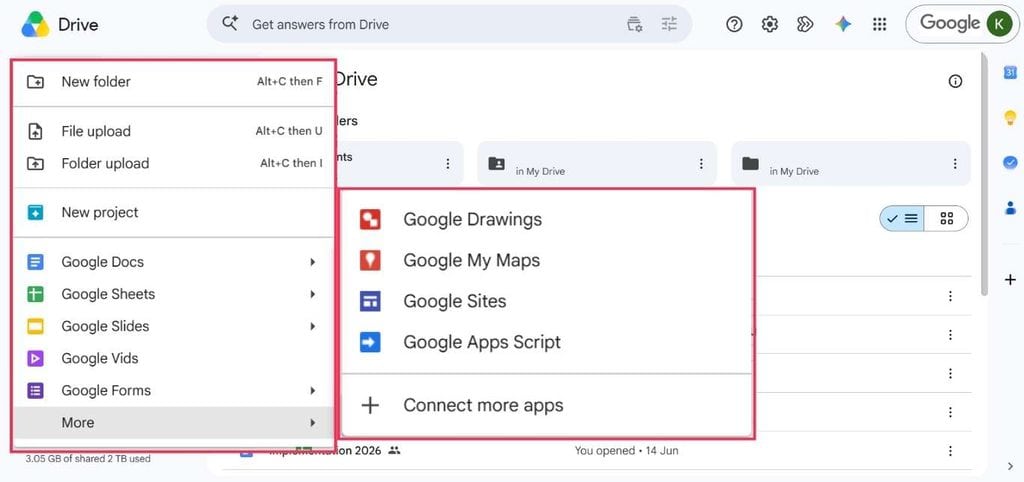
Best Freelancer Tools: Google Drive Dashboard
Google Drive is clean and intuitive. Most users figure it out without any guidance. Changing a sharing permission takes about 10 seconds, and collaborating on a document in real time is as friction-free as it gets.
Pricing
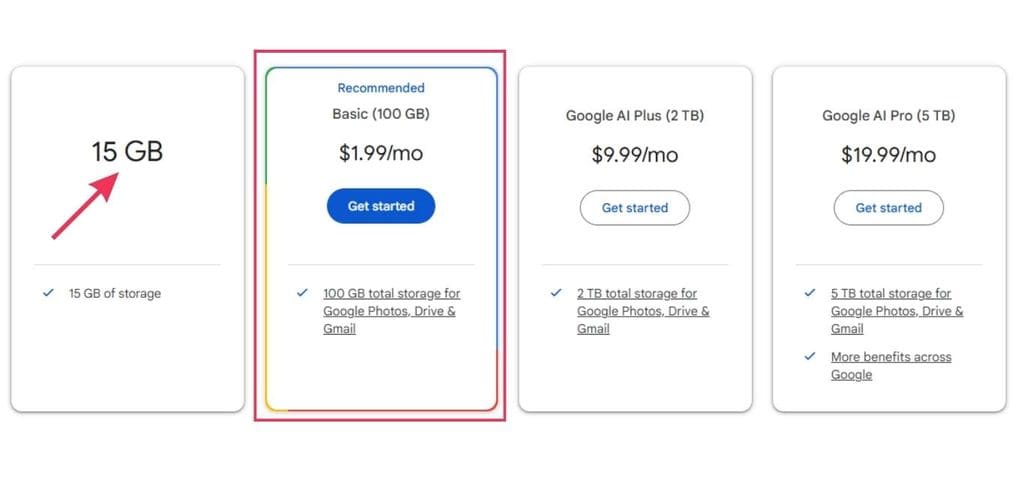
Best Freelancer Tools: Google One Pricing
Free up to 15GB. The entry-level Google One plan for 100GB starts at $1.99 per month (or $19.99 per year).
My Take
We use Google Drive for the bulk of our file storage, and it does the job well. Sharing files with the team is fast, and the permission settings mean I never have to worry about someone accidentally overwriting a document they shouldn’t have access to.
The one thing I consistently remind my team: do not treat Google Drive as your only backup. It’s convenient, but a compromised or lost Google account can mean losing access to a significant amount of work instantly. Two-factor authentication is non-negotiable, and so is keeping independent backups of anything critical.
Also worth noting: if you link your Gmail to every platform you sign up for, you’re creating unnecessary exposure. Keep your primary Google account as clean and protected as possible.
5. Canva
Best Freelancer Tools: Canva for Visual Content and Design
Overview
Canva is a browser-based design tool built for people who need to produce professional-looking graphics quickly without a design background. It has become one of the most popular tools for creating social media posts, marketing materials, presentations, and branded templates and for good reason.
The interface is drag-and-drop, the template library covers nearly every format imaginable, and the AI features added in recent years—including background removal, text-to-image creation, and AI-driven brand templates—have made the platform significantly faster to work with.
It is not a replacement for professional design software like Adobe Illustrator, nor does it try to be. Think of it as the tool that handles 80% of your everyday visual content without requiring a graphic designer for every minor update. The best part is that the free plan is genuinely capable for most everyday needs.
Who It’s For
Freelancers, small business owners, content teams, and educators who need to produce consistent, on-brand visual content regularly. Particularly useful for teams where not everyone has a design background but everyone needs to create or update branded materials. Graphic designers working on quick client deliverables will also find it saves time on production.
Key Benefits
- Extensive template library for social media posts, presentations, proposals, and marketing assets — all ready to customize
- Drag-and-drop interface with a user-friendly interface accessible to complete beginners
- Editable branded templates your team can update independently without coming back to you
- Web-based with no installation required — works in any browser, available today
- Brand kit support for consistent colors, fonts, and logos across all materials
- Free plan with a solid range of templates and design assets
Pros & Cons
| Pros | Cons |
| Fast and beginner-friendly for everyday social media posts and marketing graphics | Not suitable for professional logo design, complex typography, or true vector work |
| A large template library significantly reduces production time | Exports low-resolution files that don’t hold up for large-format print |
| Easy for teams to collaborate and edit shared designs simultaneously | Fonts and assets are locked inside Canva and don’t always transfer cleanly to other platforms |
| A useful teaching tool for the basics of layout, color, and visual hierarchy | Experienced graphic designers find it limiting and inflexible for anything beyond basic work |
| The free plan covers most everyday design needs without a paid commitment | Over-reliance on Canva templates can limit your ability to develop original design skills |
User Experience
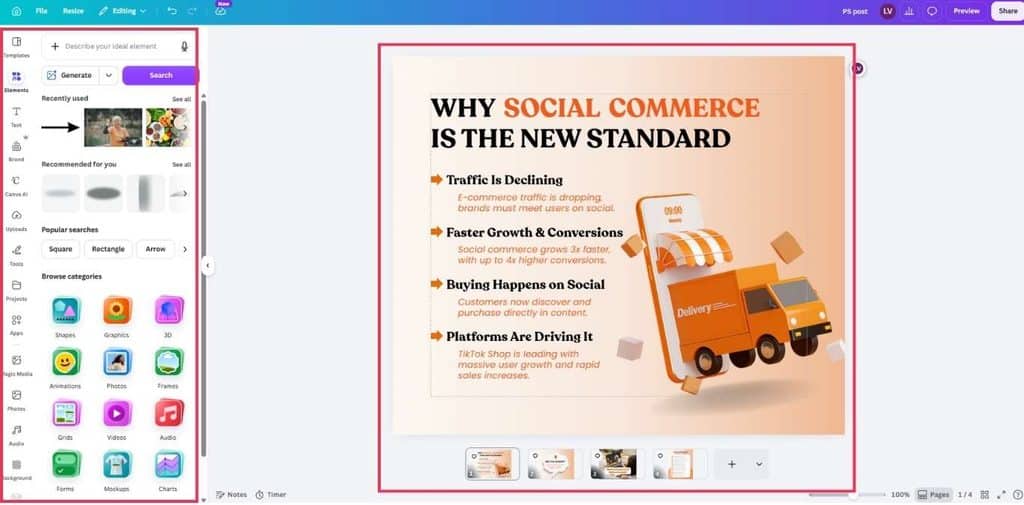
Best Freelancer Tools: Canva Dashboard
Canva is built for ease of use. Most users are creating their first graphic within minutes of signing up. The learning curve is almost flat for basic work, which is exactly what makes it practical for teams where not everyone has a design background.
Pricing
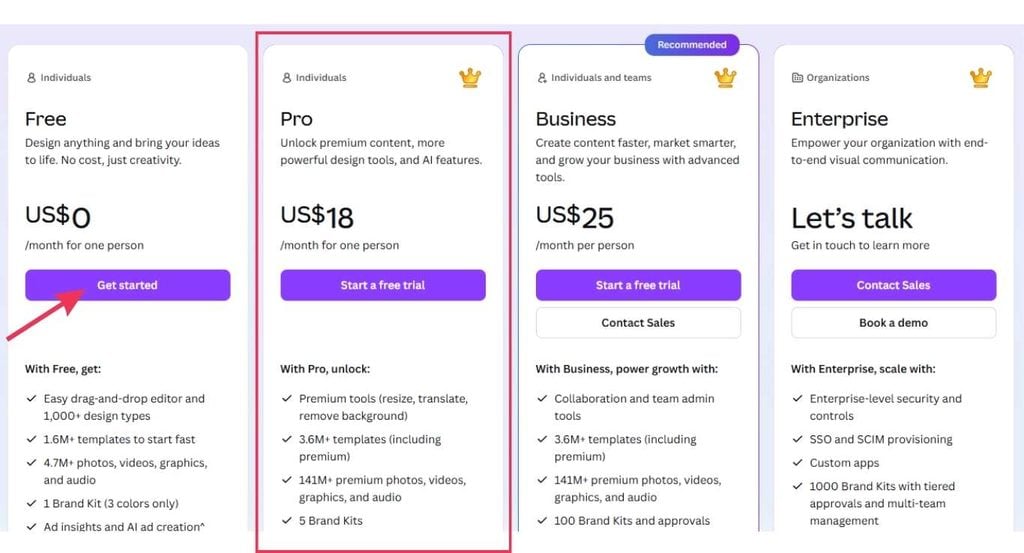
Best Freelancer Tools: Canva Pricing
The free plan covers most basic needs. Canva Pro starts at $18 per month per person and unlocks brand kits, background removal, premium templates, and additional storage. Business plans are available for larger teams.
My Take
My team uses Canva almost daily for marketing design work, and it genuinely makes us faster. The templates save time, and the fact that anyone on my team can jump in and update a design without waiting on me makes a big difference to our output speed.
We’re not doing anything that requires Illustrator-level precision. For social media posts, slide decks, and branded materials, Canva handles everything we need.
6. Claude.ai
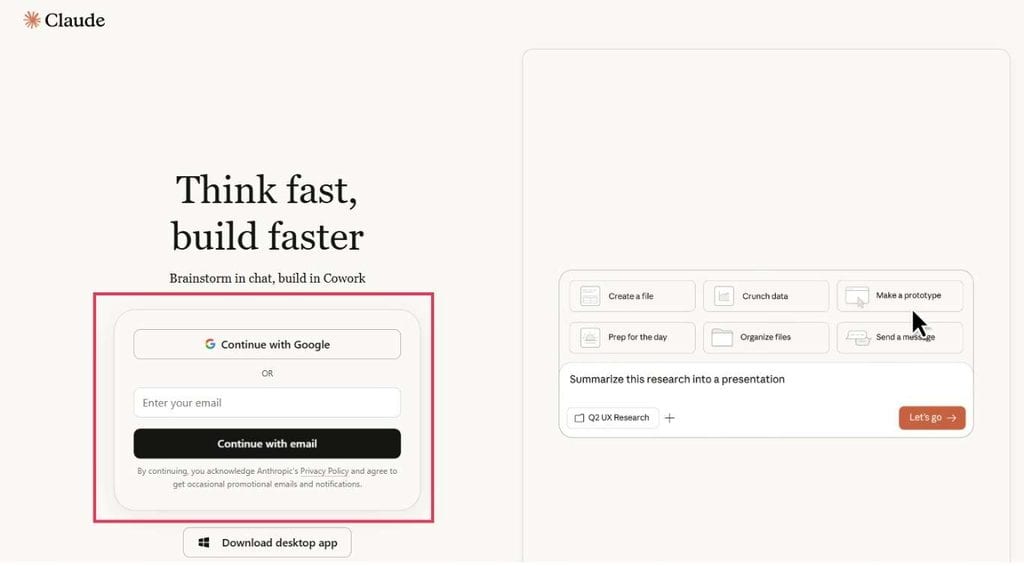
Best Freelancer Tools: Claude.ai for AI-Assisted Writing and Research
Overview
Claude.ai is an AI assistant built by Anthropic. It has become one of the more trusted productivity tools in my workflow for research, writing, editing, and working through complex problems that require sustained reasoning across a large amount of context.
It is a valuable resource for anyone who produces a lot of written content or needs a thinking partner to work through strategy.
What distinguishes it from most AI tools is its ability to handle long documents, detailed briefs, and extended conversations without losing coherence. You can feed it a full proposal, a lengthy transcript, or a multi-part project brief, and it keeps track of the details without you having to repeat yourself.
Most people who use it regularly describe it less as a search engine and more as a thinking partner. It is useful for editing drafts, building outlines, stress-testing ideas, drafting slide content, planning automations, and working through decisions step by step.
Think of it as a great resource that is available today, at any hour, without a phone number or business hours.
Who It’s For
Freelancers, small business owners, educators, and content creators who want a capable AI tool for research, writing, planning, and daily productivity tasks.
Key Benefits
- Handles long documents and complex, multi-step reasoning better than most competing tools
- Functions as a collaborator, editor, brainstorming partner, planner, and writing assistant — a true all-in-one solution for knowledge work
- Particularly strong for summarising research, building structured outlines, and drafting presentation content
- Useful for everyday productivity tasks including prioritisation, focus time planning, and content drafting
- Responses feel conversational and well-structured rather than generic or robotic
- Can assist with planning automations and workflows across different projects and platforms
Pros & Cons
| Pros | Cons |
| Strong at long-form reasoning, research synthesis, and writing tasks | Like all AI tools, it can produce incorrect answers, especially on technical or specialised topics |
| Conversational in a way that makes complex tasks easier to work through | Output quality is directly tied to the quality of your prompts |
| Holds large amounts of context across long conversations without drifting | Cross-checking important outputs with other sources is still good practice |
| Practical for both beginners and experienced users depending on how they prompt it | Free plan usage limits are easy to hit on heavier workloads |
| Pro plan unlocks meaningfully more capability for larger and more complex projects | Not a substitute for expert judgment on high-stakes or specialised decisions |
User Experience
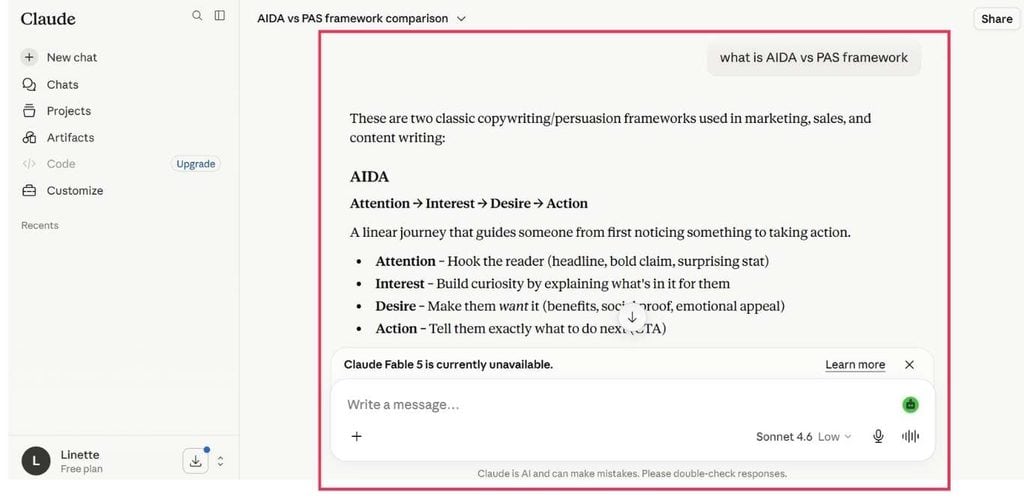
Best Freelancer Tools: Claude Dashboard
Claude feels more like a conversation than most AI tools. Responses are clear, well-structured, and genuinely useful without being padded with unnecessary qualifications. The interface is clean and requires no learning curve.
Pricing
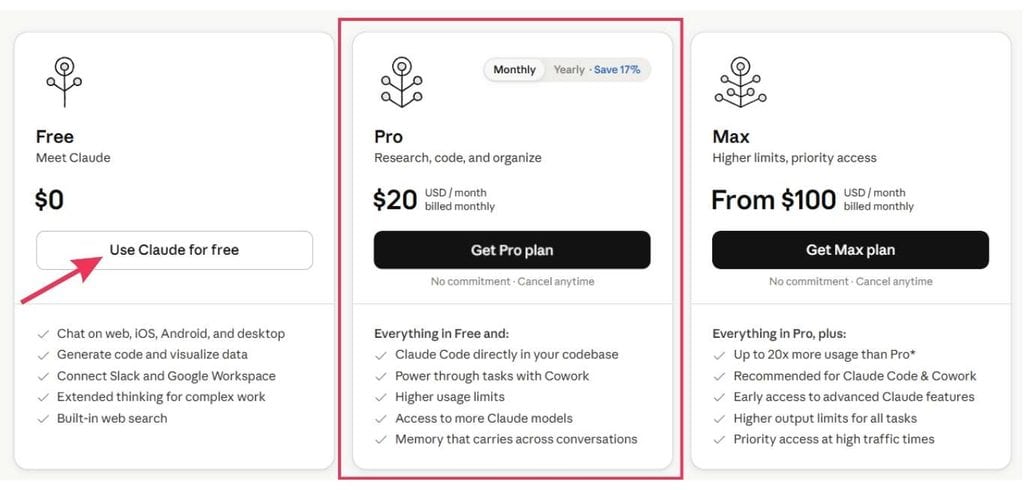
Best Freelancer Tools: Claude Pricing
Free plan available for basic use. The Pro plan is $17 per month and provides significantly more usage capacity, access to the latest models, and the ability to handle larger and more complex projects.
My Take
I use Claude with a Pro account daily. It handles a significant portion of my content drafting, presentation planning, and strategic thinking work. When I’m stuck on how to approach something or need to work through a complex decision, it’s the first tool I open.
For anyone new to AI tools, it’s one of the most approachable options available. It explains its reasoning clearly rather than just outputting a block of text, which makes it easier to learn how to use AI effectively over time.
The one practice I’d encourage regardless of which AI tool you use: verify anything important before it goes out the door. These tools are powerful, but they’re not infallible.
7. QuillBot
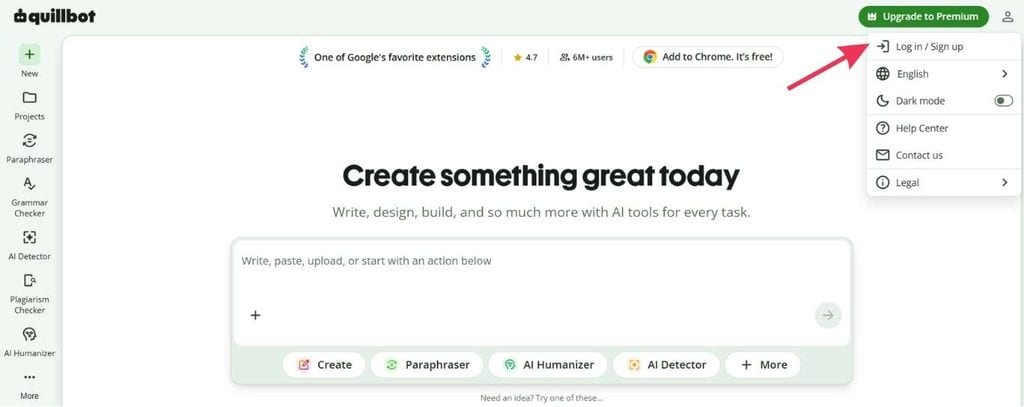
Best Freelancer Tools: QuillBot for Editing and Paraphrasing
Overview
Quillbot is a writing and editing tool best known for its paraphrasing and grammar-checking features. It’s widely used by copywriters, freelancers, and content creators who want a fast way to polish drafts, shift tone, or rephrase content without rewriting everything from scratch.
The paraphrasing tool is the standout feature: paste a paragraph, choose a tone mode, and get several rewritten versions in seconds. It’s practical for copywriting, content repurposing, and cleaning up rough first drafts before they go to a client or get published.
It also includes a grammar checker, a summarizer, and an AI detection score, though that last feature comes with real limitations that are worth understanding before you rely on it. For note-taking apps and short notes that need to be turned into polished copy fast, Quillbot fills a useful gap.
Who It’s For
Copywriters, bloggers, content freelancers, and anyone writing regularly who wants a fast editing layer before content goes out. Particularly useful for writers working in a second language or those who need to vary tone across different content formats.
Key Benefits
- The paraphrasing tool rewrites content across multiple tones, including formal, casual, creative, and more
- Grammar and spell checkers catch errors before they leave your desk
- Summariser condenses long-form content into key points quickly
- Practical for adjusting AI-generated content to sound more natural before publishing
- Browser extension lets you use it directly inside whatever you’re writing
- Basic plan covers most everyday paraphrasing and grammar needs without a paid commitment
Pros & Cons
| Pros | Cons |
| Fast and practical for paraphrasing and polishing drafts | AI detectors are not reliable — they regularly flag human-written content as AI-generated |
| Tone adjustment is genuinely useful for copywriting and content repurposing | A QuillBot score is not a meaningful standard for academic integrity |
| Catches grammar and spelling errors that are easy to miss under deadline pressure | Over-reliance on paraphrasing tools can slow the development of your own writing voice |
| Helpful for non-native English writers working to improve their output | Paraphrased output still requires human review — it doesn’t always preserve the original meaning accurately |
| Free plan is solid for everyday use | Some advanced features are locked behind the premium plan |
User Experience
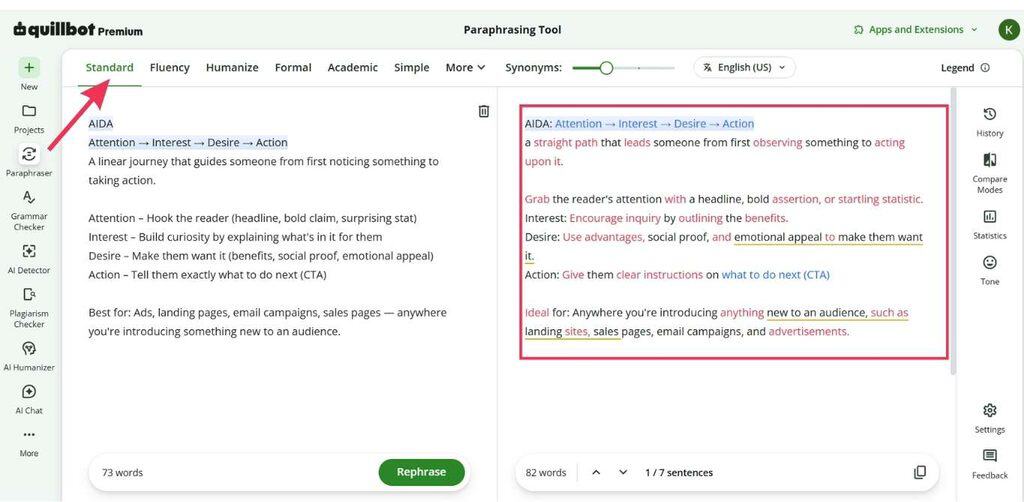
Best Freelancer Tools: QuillBot Dashboard
Quillbot is clean and simple to use. Paste your text, select a tone mode, and receive rewritten options in seconds. The free plan does restrict paraphrasing to 125 words at a time, which becomes a limitation quickly on longer content.
Pricing
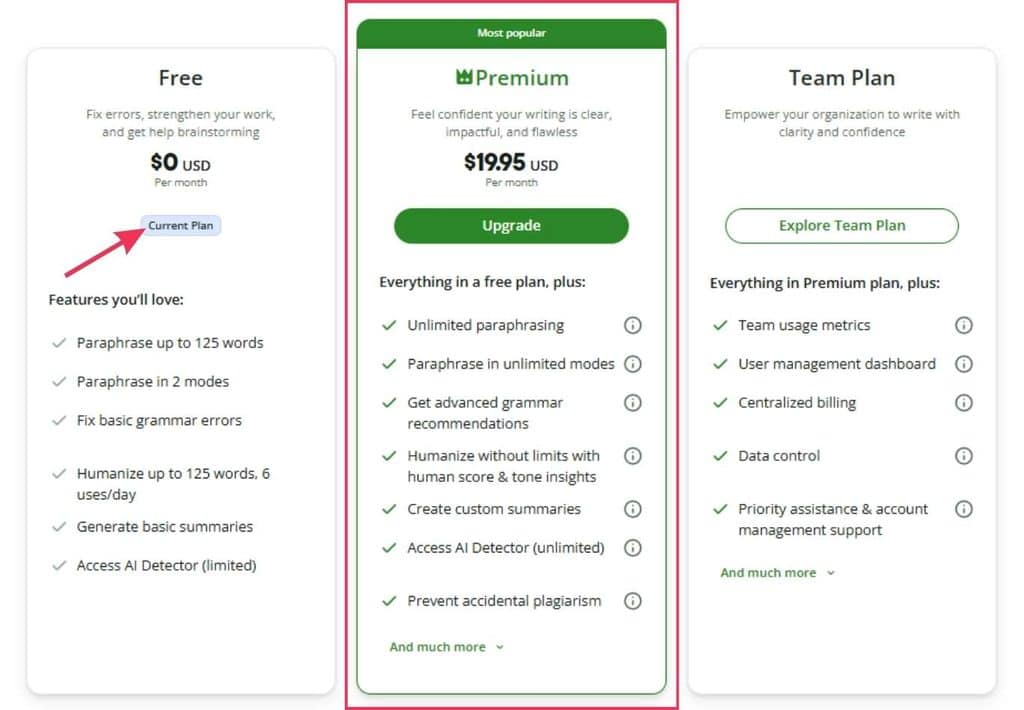
Best Freelancer Tools: QuillBot Pricing
Free plan available with basic features. The Premium plan starts at $19.95 per month and unlocks unlimited paraphrasing, expanded tone options, and advanced grammar features.
My Take
I use Quillbot primarily for paraphrasing within my copywriting work. The tone adjustment feature is where I get the most value — shifting a formal draft to something more conversational saves time without requiring a full rewrite.
I also use it to clean up content that sounds slightly too mechanical before it goes out. It’s a useful final pass, not a replacement for good writing.
On the AI detector: I’d encourage you to ignore that score as a benchmark. AI detectors are not accurate, and they flag well-written human content all the time. Use Quillbot as a writing support tool, and you’ll find it genuinely useful. Use it as a compliance measure and you’ll run into problems.
8. Wise
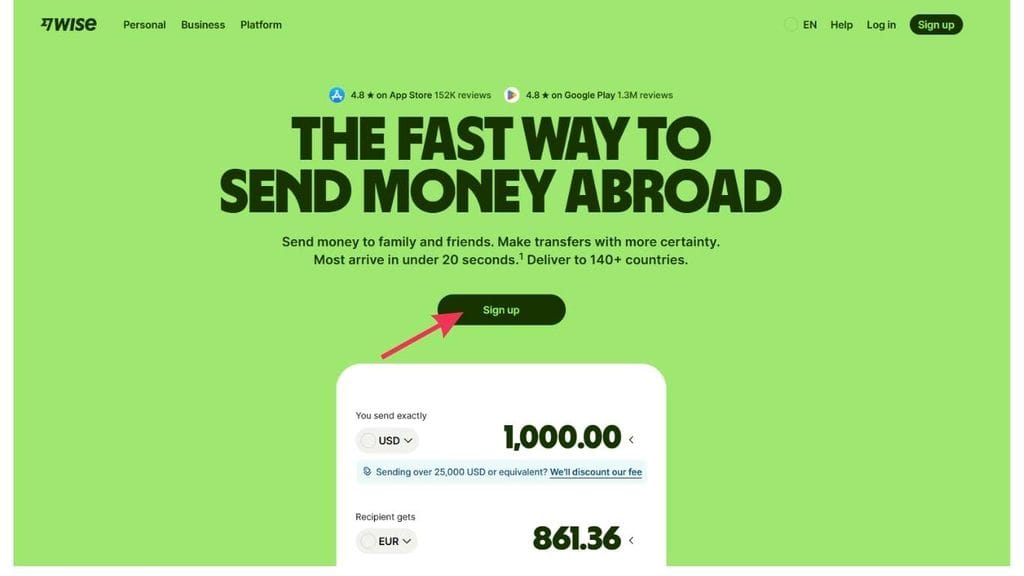
Best Freelancer Tools: Wise for International Payments
Overview
Wise is a multi-currency payment platform built for freelancers, remote teams, and anyone who regularly sends or receives money across borders.
It has become one of the most popular tools for international payments because the exchange rates are genuinely competitive and the fees are significantly lower than traditional bank transfers.
If you’ve ever watched your hourly rate shrink after a bank takes its cut, you’ll understand why this matters.
Unlike credit card payments or standard bank wires, Wise uses the real mid-market rate with transparent fees shown upfront. No surprises at tax season, no hidden charges buried in the exchange rate.
Who It’s For
Freelancers working with international clients, remote team members, small business owners handling cross-border payments, and anyone who needs a low-fee multi-currency wallet for regular international transactions. The good news is that setup takes minutes and the account links easily without the complexity of traditional bank accounts.
Key Benefits
- Real mid-market exchange rates with low, transparent fees and no hidden markups — unlike credit card payments with international surcharges
- Multi-currency wallet lets you hold, convert, and spend in multiple currencies from one account
- Debit card works for ATM withdrawals and everyday purchases internationally
- Instant card freeze from the app if something goes wrong
- Faster and cheaper than traditional bank wires for the majority of international transfers
Pros & Cons
| Pros | Cons |
| Fees are significantly lower than traditional bank accounts and credit cards for international transfers | Customer support can be slow and difficult to reach when something goes wrong |
| Clean, reliable app that’s straightforward to navigate | Large transfers can get stuck at intermediary banks with minimal visibility into the status |
| Practical for paying remote team members in different currencies | Wise is an Electronic Money Institution (EMI), not a licensed commercial bank |
| Instant card freeze limits exposure to your Wise balance only, not your main bank account | Fees become percentage-based on transfers over $10,000 USD |
| Long operational track record with a large, established user base | Free ATM withdrawal limits are relatively strict — typically around $100 to $250 USD per month depending on card issuance country |
User Experience
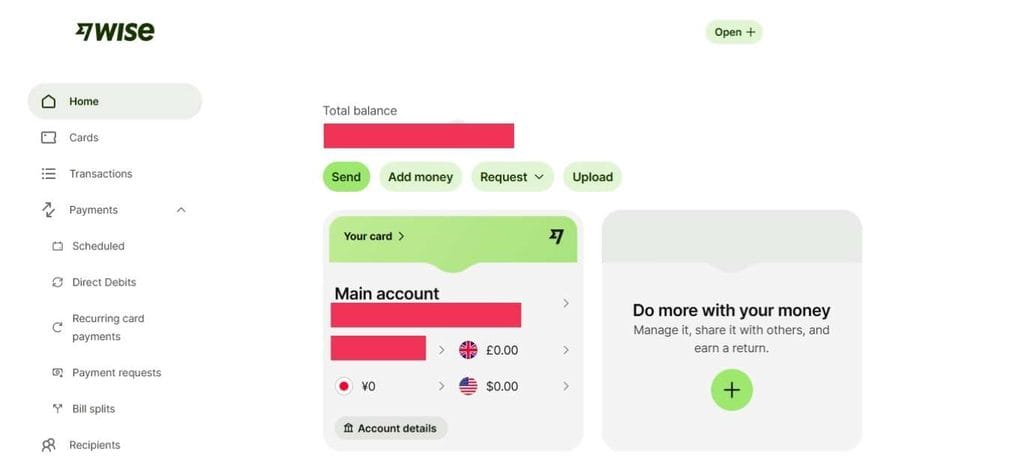
Best Freelancer Tools: Wise Dashboard
The Wise app is one of the better-designed financial tools available. Straightforward, fast, and easy to navigate without a learning curve.
Pricing
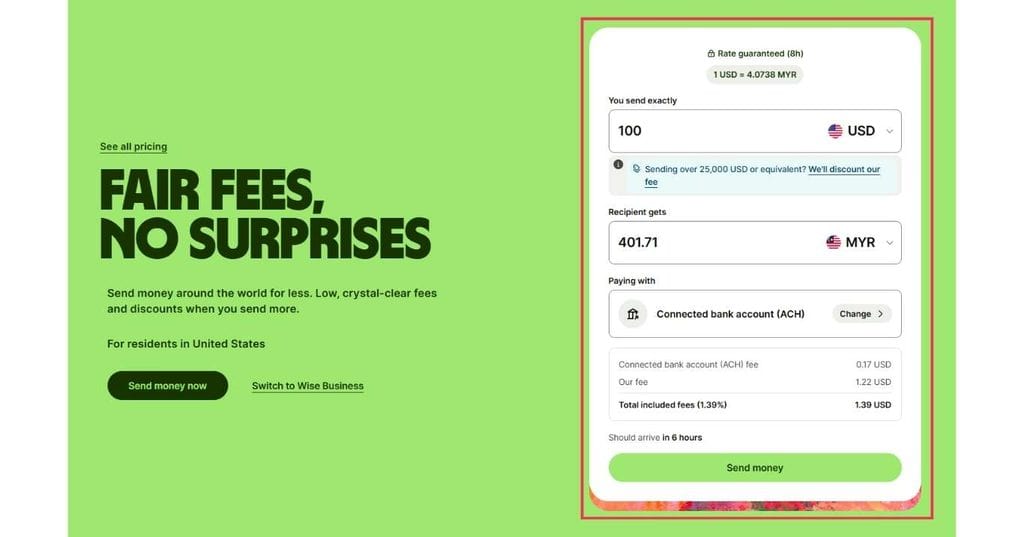
Best Freelancer Tools: Wise Conversion Example
Free to sign up. Sending money incurs a small fee that varies by currency and transfer amount, typically much lower than standard bank transfer fees. Full fee details are available on the Wise pricing page.
My Take
Losing money to bank fees and poor exchange rates on every international payment is an entirely avoidable cost. My team and I use Wise for the majority of our international payments, and the combination of lower fees and better rates is the reason we’ve stuck with it.
Sending a payment is fast once the account is set up, and the receiving experience has been consistently smooth for my team members. For anyone running a business with international clients or a distributed team, switching to Wise is one of the simpler, more impactful operational decisions you can make.
9. Google Calendar
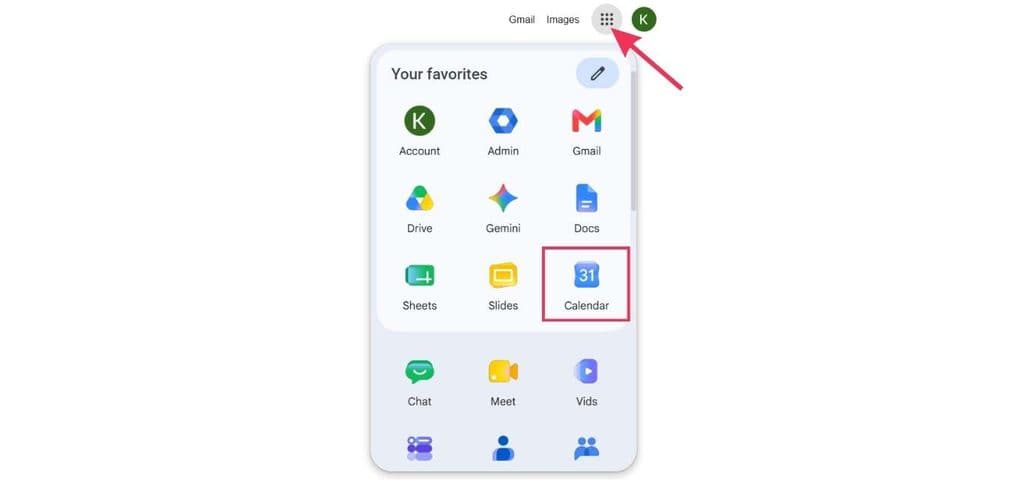
Best Freelancer Tools: Google Calendar for Scheduling and Time Management
Overview
Google Calendar is one of the most widely used scheduling and time management tools available today and one of the most underrated productivity tools for freelancers.
Most people treat it as a basic calendar app. In practice, it is a full scheduling system that helps you protect your focus time, set clear business hours, manage client calls, and stop letting your week get away from you.
For freelancers specifically, where your time is directly tied to your hourly rate and your ability to deliver work on time, having a reliable scheduling system is not optional.
Google Calendar integrates natively with Gmail, Google Meet, and Google Drive, which means your entire workflow from proposals to client calls to project due dates can live in one connected system without needing third-party tools to stitch it together.
Who It’s For
Freelancers, coaches, consultants, and small business owners who need a dependable, easy-to-use scheduling tool that connects to the tools they already use. It’s especially useful for anyone juggling different projects, multiple client calls per week, and deadlines across different time zones.
Key Benefits
- Block time for focus time, deep work, and business hours so clients and your team know when you’re available
- Set and track due dates across different projects with calendar reminders
- Integrates natively with Gmail, Google Meet, Google Drive, and Google Sheets — no third-party tools needed
- Share your calendar with clients or team members so they can book time directly without a back-and-forth email chain
- Colour-code calendars by client, project type, or priority to see your week at a glance
- Free with any Google account — available today with no additional setup cost
Google Calendar vs. Calendly: Which One Do You Actually Need?
This is a question freelancers ask often, and the honest answer is: they solve different problems.
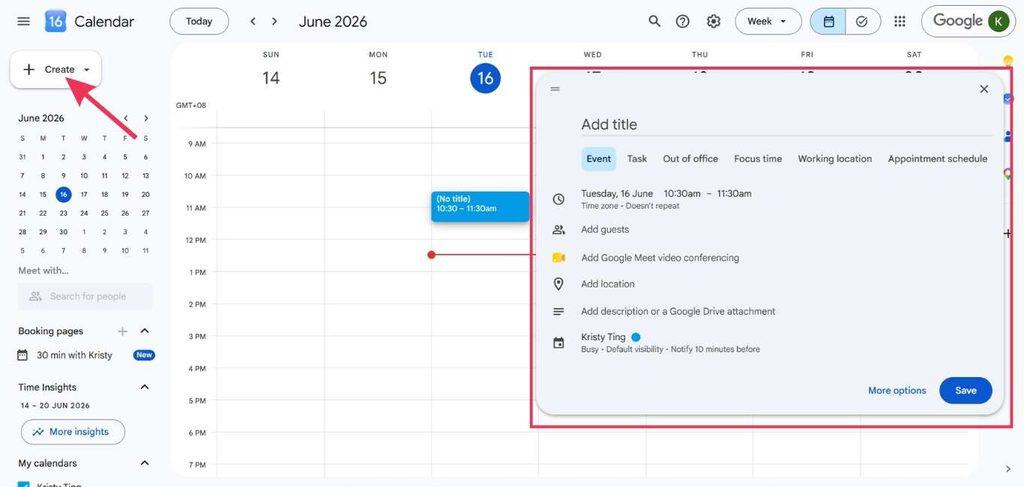
Best Freelancer Tools: Google Calendar Dashboard
Google Calendar is your scheduling system the place where your time actually lives. It handles your availability, your due dates, your focus time blocks, your team meetings, and your personal commitments. Everything goes in there.
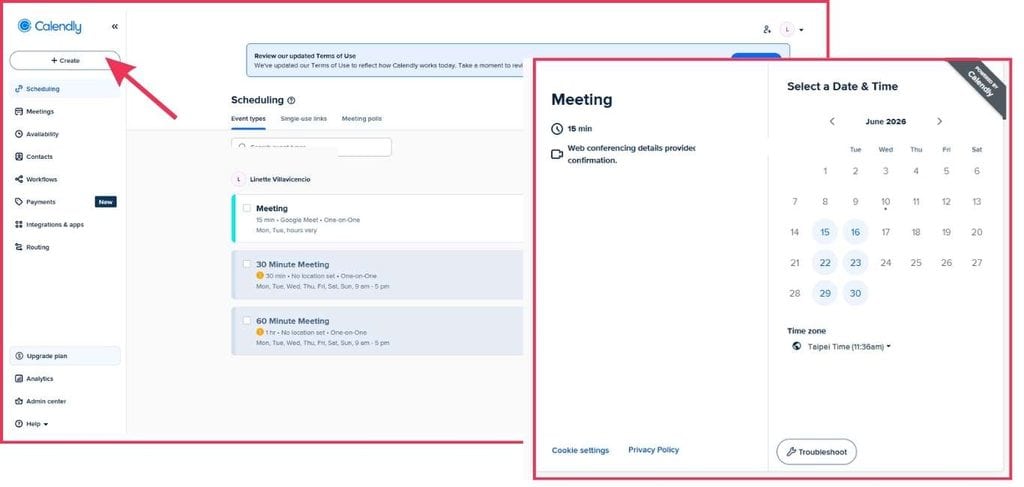
Best Freelancer Tools: Calendly Dashboard
Calendly is a booking tool. Its job is to let potential clients and existing clients book time with you without the back-and-forth of finding a slot. You connect it to Google Calendar, set your availability rules, and share your link. When someone books, it automatically adds the event to your Google Calendar and sends confirmation emails.
The best setup for most freelancers is both. Google Calendar as the foundation, Calendly on top of it for client-facing bookings. If budget is a concern, Google Calendar alone handles the essentials. Calendly adds polish and saves time on scheduling admin, but it is not a must-have to get started.
How They Compare
| Feature | Google Calendar | Calendly |
| Core purpose | Scheduling & time management | Client self-booking |
| Ease of use | Simple, most people already use it | Simple, shareable booking link |
| Client booking | Manual — you create events | Automated via booking link |
| Business hours control | Yes — block time manually | Yes — built into availability rules |
| Integrations | Google Workspace native | Connects to Google Calendar + Zoom |
| Due dates & reminders | Yes | No — booking only |
| Focus time blocking | Yes — native feature | Not applicable |
| Free plan | Yes — fully featured | Yes — basic plan available |
| Paid plan | Part of Google One / Workspace | From $10/month for pro features |
| Best for | Managing your entire week | Reducing scheduling back-and-forth |
Pros & Cons
| Pros | Cons |
| Free with any Google account — no extra cost to get started | Does not have a built-in client self-booking flow — you need Calendly or a similar tool for that |
| Integrates natively with the full Google Workspace suite | No proposal software or invoicing built in — you’ll need separate tools |
| Excellent for blocking focus time and protecting business hours | Mobile app is functional but less feature-rich than desktop for complex scheduling |
| Tracks due dates and reminders across different projects in one view | Shared calendars have limited permission controls compared to paid project management tools |
| Familiar user-friendly interface with almost no learning curve | Does not natively support credit card payments or billing integrations |
| Works well alongside Calendly for a complete scheduling setup |
User Experience
Google Calendar has one of the most familiar interfaces of any tool on this list. Most freelancers already use it to some degree. The upgrade is in how intentionally you use it—treating it as a system for protecting your most productive hours, not just a place to log meetings.
Pricing
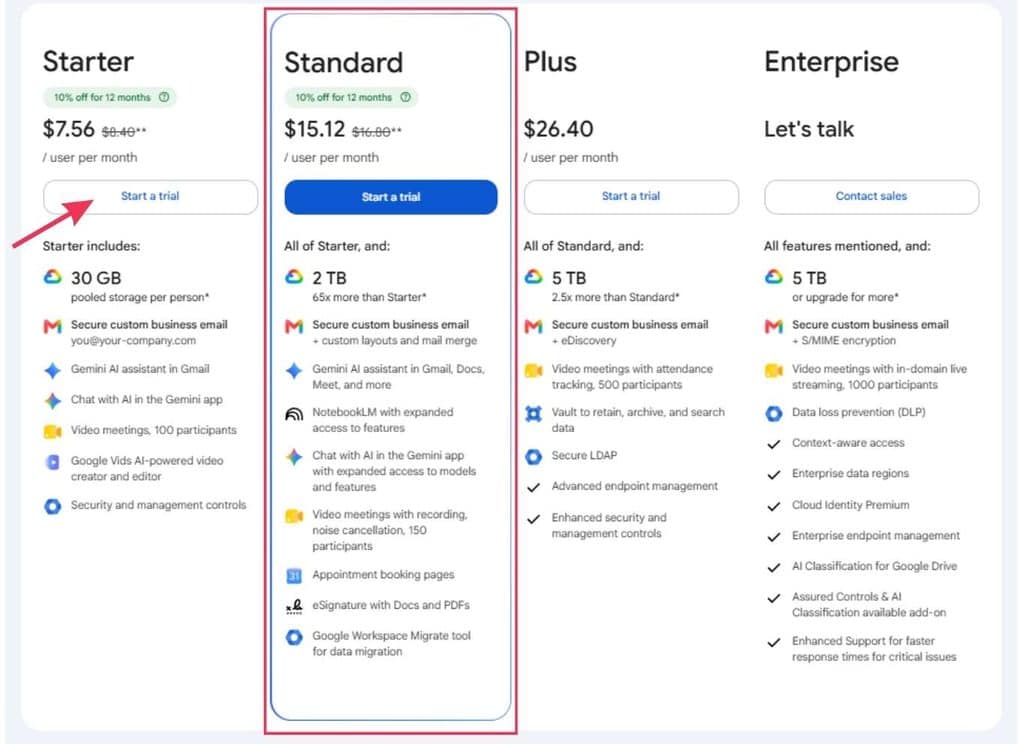
Best Freelancer Tools: Google Workspace Pricing
Google Calendar is free with any Google account. Advanced features for teams are available through Google Workspace plans, which start at $7.56 per user per month.
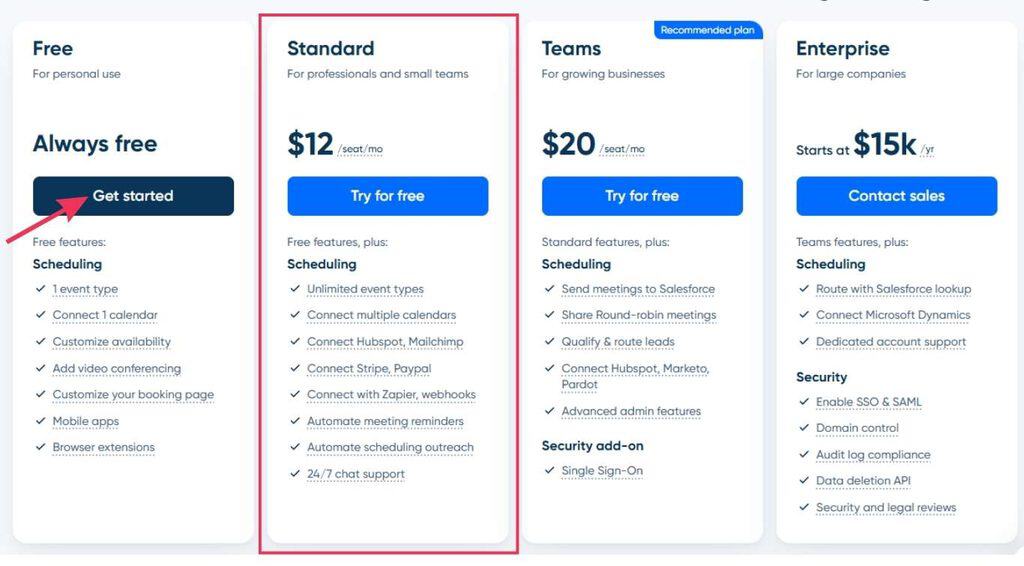
Best Freelancer Tools: Calendly Pricing
Calendly’s basic plan is free; paid plans start at $12 per user per month for features like multiple event types, reminder workflows, and deeper integrations.
My Take
Google Calendar is one of those tools that makes a big difference not because of what it does, but because of the discipline it creates. Once you start blocking focus time, setting business hours, and treating your calendar as a reflection of your actual priorities, you’ll find yourself spending less time reacting and more time doing the work that actually matters.
For client scheduling specifically, the combination of Google Calendar and Calendly is one of the most practical setups available for freelancers. Google Calendar holds your schedule. Calendly handles the client-facing booking so you are not exchanging five emails just to find the right time.
If you are just starting out, Google Calendar alone is more than enough. Add Calendly when scheduling admin starts eating into your free time. It is a great option that pays for itself quickly.
Final Thoughts
You don’t need all nine of these on day one. Start with whatever solves your most pressing problem right now.
If client communication is disorganized, start with Loom. If projects are slipping through the cracks, start with ClickUp. If international fees are cutting into your hourly rate, Wise should be your next move. If you’re hard to reach or hard to book, Google Calendar is where to start.
As your business grows, having the right infrastructure in place stops being optional. The goal is to spend the majority of your time on the work you’re actually skilled at, the work that brings in the right client, delivers real results, and builds your reputation.
These nine tools help you get there by handling the operational overhead so you don’t have to. They’re built to scale with you, and the good news is that most of them are available today at little to no cost.
Frequently Asked Questions
What tools do I actually need to start?
The basics: project management software to track tasks and due dates, a way to communicate with clients, a place to share files, and a way to get paid. I started with Google Drive and Zoom and expanded from there. Keep it simple early. Complexity comes naturally as you grow.
What are the best free tools for new freelancers?
Google Drive, Google Calendar, Canva, Zoom, and ClickUp all have free plans that are more than adequate to start with. I used free versions of most of these for a significant stretch before upgrading. You do not need to spend money to start doing professional-quality work.
Are paid plans worth the investment?
It depends on the tool and where you are in your business. My rule: upgrade when the free plan starts limiting what you can deliver to clients, or when the paid plan saves more time than it costs. If you’re barely using a tool at its basic plan level, cancel it.
Can free tools support professional freelance work?
Yes. I’ve delivered professional client work on free plans more times than I can count. The limitations become more apparent as you scale, not when you’re starting out. Upgrade when you’re earning consistently and the free tier is the actual bottleneck.
Do I need both Google Calendar and Calendly?
Google Calendar is your scheduling foundation — it manages your time, your focus time blocks, your due dates, and your business hours. Calendly sits on top of it for client-facing booking. You need Google Calendar.
You add Calendly when scheduling back-and-forth starts eating into your productive time. Start with Calendar, add Calendly when you’re ready.
What’s the most common mistake freelancers make when choosing tools?
Using too many at once. I made this mistake early on — too many apps, too much context switching, not enough depth in any single tool. Choose two or three that address your real problems right now, learn them properly, and add more only when you’ve genuinely outgrown them.