

This post may contain affiliate links. If you use these links to buy something we may earn a commission at no extra cost to you. Thank you for your support!
I love ClickUp, despite the fact that I’m now hunting around for an alternative (and hence, this article!).
I’ve used it for a few years to manage projects for my agency. Back in my freelancing days, I’ve also used Trello, Monday.com, Asana and Notion, so I’m no stranger to project management tools.
ClickUp can do A LOT, but that flexibility comes with a price. And I’m not just talking about money.
You’ll need to spend a fair bit of time figuring out its more advanced features. There are automations, custom fields, different project views, and plenty more. It’s great once you’ve got everything set up, but seriously, it can be overwhelming.
And then there’s the cost.
Don’t get me wrong, we love using ClickUp. At the same time once you’ve gotten the automations all set up, you sit back and think – wait – am I really paying $70 monthly for this? And with every team member I add on, that’s an additional cost I have to pay?

So, I went looking.
First requirement – unlimited team members at a base plan that gives me access to all features I need. And I found Asana! 😆
After researching and testing several other platforms, I realized that I could probably get what my team needs for a fraction of the price elsewhere.
Which brings me to this article.
Which ClickUp Alternative Is Right for You?
Not every project management tool works the same way, and the best choice really depends on what you need it for.
For example, Asana is great for managing projects where several people need to work together. You can assign tasks, set deadlines, and make sure everyone knows what needs to be done before the next person can start their part.
If you run an agency or manage projects for clients, Teamwork.com is worth a look. It helps you keep client projects, files, deadlines and other details organized in one place.
Jira is more suited to software developers, while Trello is a much simpler option if all you need is a way to organize tasks and keep track of what’s done.
Then there’s Airtable, which is useful if you need to manage customer information, projects, invoices and other business records.
But here’s the thing, though.
You don’t necessarily need the platform with the most features. Sometimes, you just need something that does the job without taking weeks to figure out or costing more than it should.
So, I’ve compared eight ClickUp alternatives based on their features, ease of use, pros and cons, and pricing.
Let’s see how they stack up.
Which Tool Best Fits Your Team? Compare 8 ClickUp Alternatives
You don’t need another app that takes three weeks to set up. Start with what annoys you about ClickUp (ahem), then look at the tools that fix that problem.
The stars below are our editorial ratings for people switching from ClickUp, based on ease of use, useful features, value and how quickly a team can get started. They are not customer review scores. A lower-rated tool may still be your best choice for a specific job.
| Tool | Our rating | Best for | Starting price (USD) | Watch out for |
| Asana | ★★★★★ 5/5 | Teams that need clear tasks and deadlines | Free; Starter $10.99/user/month | Better reporting costs more |
| monday.com | ★★★★½ 4.5/5 | Teams that like colourful, visual boards | Free; Basic from $9/seat/month | Seat bundles can raise the bill |
| Teamwork.com | ★★★★½ 4.5/5 | Agencies and client projects | Free; Basics $9.99/user/month | More than you need for personal tasks |
| Trello | ★★★★ 4/5 | Simple task boards and quick setup | Free; Standard $5/user/month | Harder to see many projects at once |
| Zoho Projects | ★★★★ 4/5 | Budget-friendly project planning | Free; Premium $4/user/month | Takes some setting up |
| Wrike | ★★★½ 3.5/5 | Detailed approvals and complex projects | Free; Team $10/user/month | More to learn |
| Airtable | ★★★½ 3.5/5 | Teams managing lots of linked information | Free; Team $20/user/month | You build much of the system yourself |
| Jira | ★★★ 3/5 | Software development | Free; Standard from $7.91/user/month | Too technical for many everyday teams |
Prices shown are advertised US rates, generally per person per month with annual billing, checked in October 2026. Jira’s displayed Standard rate varies with user count; monday.com’s quoted seat price can depend on its seat bundle and product. Taxes, add-ons and plan limits may apply. Always check the current quote before paying.
1. Asana — Best Overall for Keeping Everyone on Track
Rating: ★★★★★ (5/5)
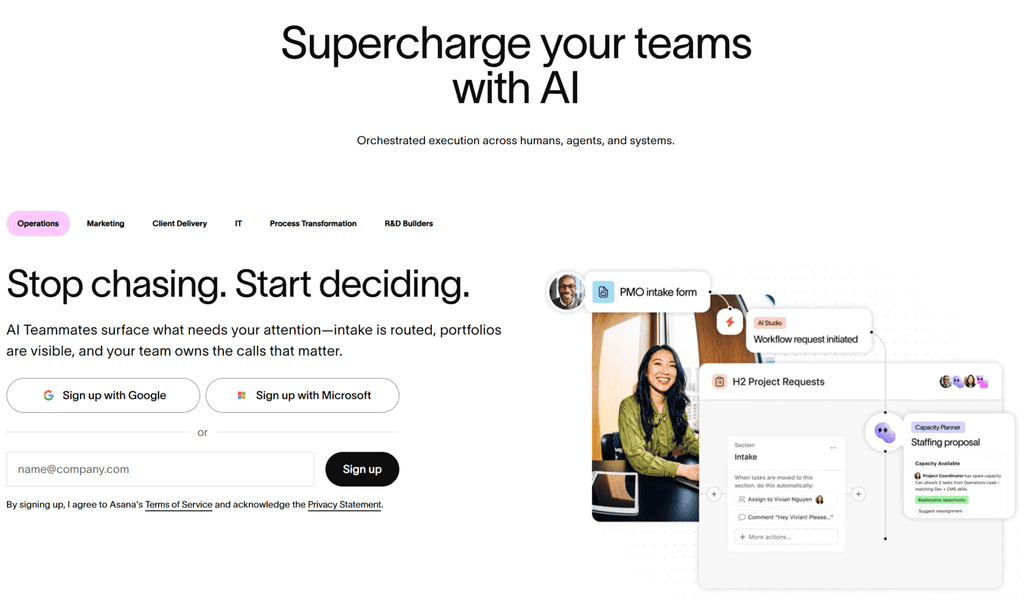
If your team keeps asking, “Who’s doing this?” or “When is it due?”, Asana is a strong choice. It gives each task an owner, a deadline and a place for updates. No detective work is required.
Its clean interface makes it easier to see what’s happening. You can use task lists, calendar views or boards, and track progress without building a complicated system first. It’s a good fit for marketing teams, operations teams and other groups working on shared projects.
Pros
- Easy to assign work and spot overdue tasks.
- Clear project views for different ways of working.
- Useful templates and workflow automation for repeat tasks.
Cons
- Some advanced features sit behind higher-priced plans.
- Portfolio management — seeing several projects together — requires Advanced or above.
- It can feel too formal if all you want is a simple to-do list.
Asana pricing
| Plan | Price | What you get |
| Personal | Free | Up to 2 users; tasks, projects and basic views |
| Starter | $10.99/user/month | Timelines, forms, custom fields and reporting |
| Advanced | $24.99/user/month | Goals, portfolio management and workload tools |
| Enterprise | Custom quote | More security and company-wide controls |
Start here: Set up one project, add five real tasks, assign them to team members and check whether everyone can find their next step. Don’t move the whole company on day one.
Want to see whether Asana is a better fit for your team? Try Asana with one real project before deciding whether to migrate your entire workflow from ClickUp.
2. monday.com — Best for Seeing Work at a Glance
Rating: ★★★★½ (4.5/5)
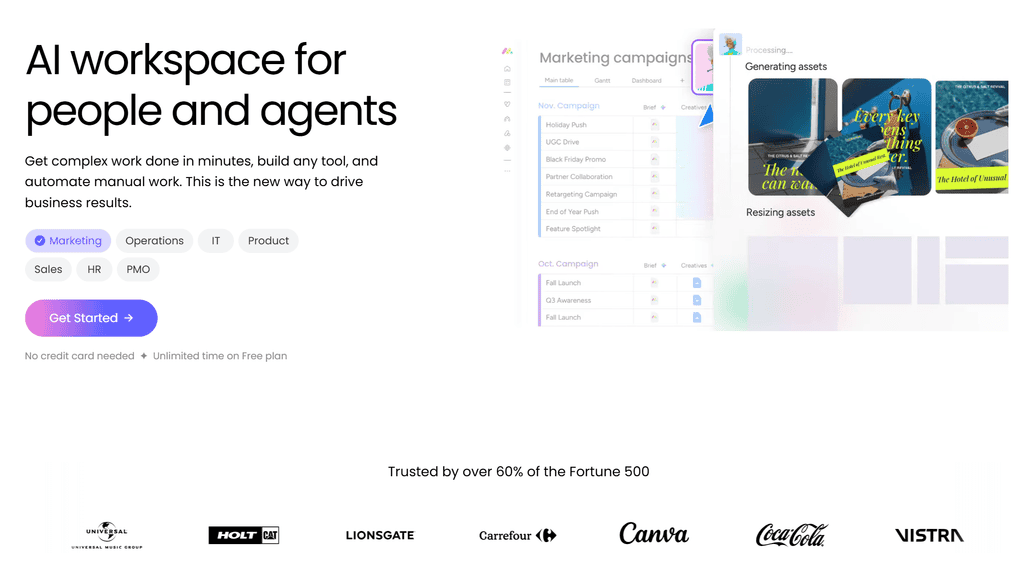
monday.com is a popular choice for people who prefer to see their work rather than dig through menus. Its visual workflows show what’s waiting, what’s in progress and what’s done. Think spreadsheet, but with fewer reasons to sigh.
It’s a flexible workspace for campaign calendars, sales teams and operations teams. You can add custom fields, set up live dashboards and use visual project boards to follow deadlines. Its intuitive interface is a plus, although setting up the perfect board can become a project of its own.
Pros
- Colourful boards make status easy to scan.
- Customizable workflows suit different departments.
- Helpful dashboards and automations for repeated steps.
Cons
- Minimum seat bundles may mean paying for more people than you have.
- Useful features differ by plan and product.
- Too many boards can become messy without clear rules.
monday.com pricing
| Plan | Advertised starting price | What to know |
| Free | Free | Up to 2 seats; limited boards |
| Basic | From $9/seat/month | Core boards and tracking |
| Standard | From $12/seat/month | Timeline views and more sharing options |
| Pro | From $19/seat/month | More automation and time tracking |
| Enterprise | Custom quote | Higher-level security and controls |
Start here: Create one board for a live campaign. Try it with three people before building a dozen boards. Check the total seat-bundle cost, not just the headline rate.
3. Teamwork.com — Best for Agencies and Client Work
Rating: ★★★★½ (4.5/5)
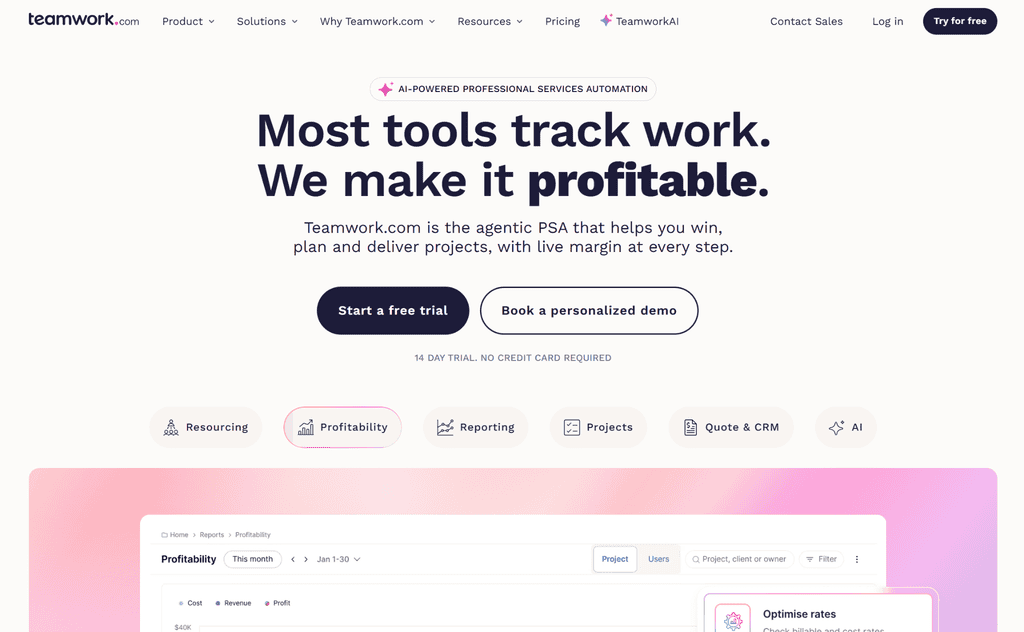
If you run an agency, Teamwork.com deserves a look. It helps you plan client jobs, assign tasks, log hours and see whether a project is staying within budget. That’s useful when “just one more revision” becomes revision number nine. No kidding!
Unlike a basic project tracker, it connects the work your team does with the time it takes. Its resource planning tools can also help you see who’s overloaded before you promise another client a Friday deadline.
When you’re juggling several client projects, keeping deliverables under control is just as important as tracking deadlines. Learning how to manage freelance project scope can help prevent unexpected revisions and additional work from eating into your project’s profitability.
Pros
- Built with client projects in mind.
- Time tracking and project budgets are central to the product.
- Clients can be involved without keeping everything in email.
Cons
- Less appealing for personal use or simple internal tasks.
- More detailed resource planning and invoicing need higher plans.
- Teams without billable work may not use much of its value.
Teamwork.com pricing
| Plan | Price | What you get |
| Free | Free | Up to 5 users and 5 projects |
| Basics | $9.99/user/month | More project tools and billable time tracking |
| Accelerate | $24.99/user/month | Capacity planning, automation and invoicing |
| Optimize / Enterprise | Custom quote | More advanced controls and support |
Before adding a new client project to Teamwork.com, make sure you’ve gathered the right information from the start. A structured client discovery call helps you clarify the client’s goals, project requirements, and expectations before assigning tasks and setting deadlines.
Start here: Add one real client project. Record hours, compare them with the agreed fee and check how easy it is to spot work running over budget.
4. Trello — Best for Getting Started Today
Rating: ★★★★ (4/5)
When I first started building a team as my agency scaled in business, I used Trello, because it was simple and quick.
However, it became too simple – there were too many features I needed that it wasn’t able to provide. I had to use additional plugins that it was offering, but they didn’t come together too well, either.
It’s great if you’re just a ‘move the cards around from pending to done’ type of person – but to be completely honest, as a business scales, Trello just cannot keep up – at least for now.
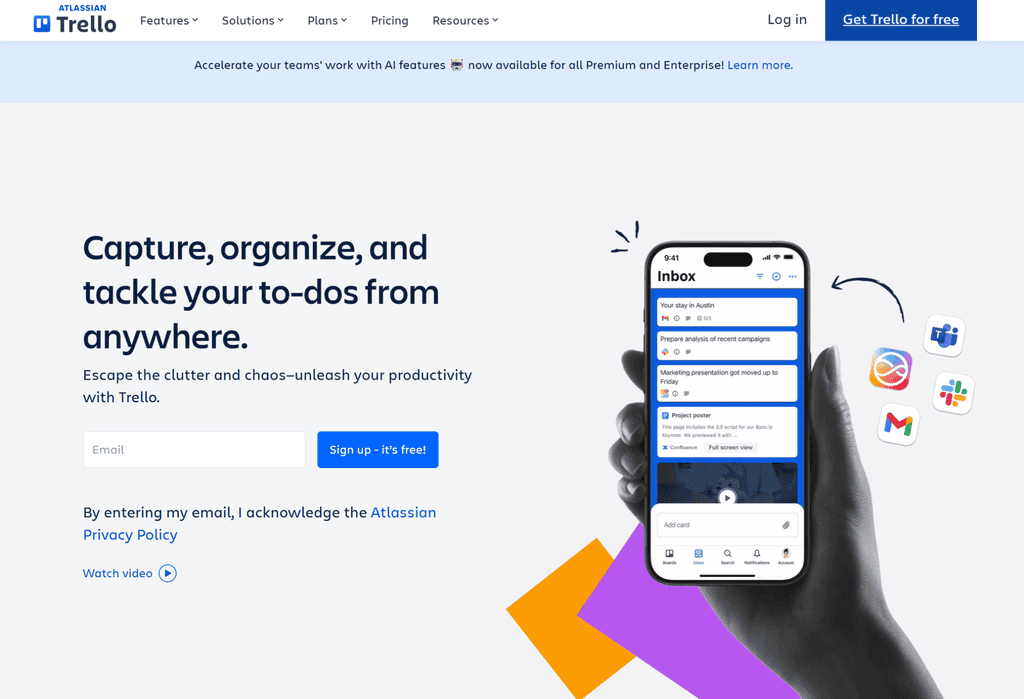
Trello is the tool I’d show someone who says, “I just want to know what needs doing.” You make cards, put them on kanban boards (columns such as To Do, Doing and Done), and move them along as work gets finished.
It’s a simple platform for daily tasks, personal tasks and non-technical teams. Its user-friendly interface and generous free plan make it a strong fit for small teams that don’t need lots of reports. You can start with simple task boards and add more later.
Pros
- Very quick to learn and use.
- Great for a simple to-do list or content calendar.
- Useful checklists, deadlines and a mobile app.
Cons
- Many separate boards can be hard to manage.
- Reporting and wider project views need higher plans.
- Not the ideal choice for complex projects with lots of linked deadlines.
Trello pricing
| Plan | Price | What you get |
| Free | Free | Up to 10 collaborators per workspace; 10 boards |
| Standard | $5/user/month | Unlimited boards, custom fields and more automation |
| Premium | $10/user/month | Timeline, dashboard and other views |
| Enterprise | From $17.50/user/month | Company-wide controls |
Start here: Make three columns: To Do, Doing and Done. Add this week’s tasks. If the team actually uses it without being chased, you’re onto something. That’s the appeal of kanban boards.
5. Zoho Projects — Best for Keeping Costs Down
Rating: ★★★★ (4/5)
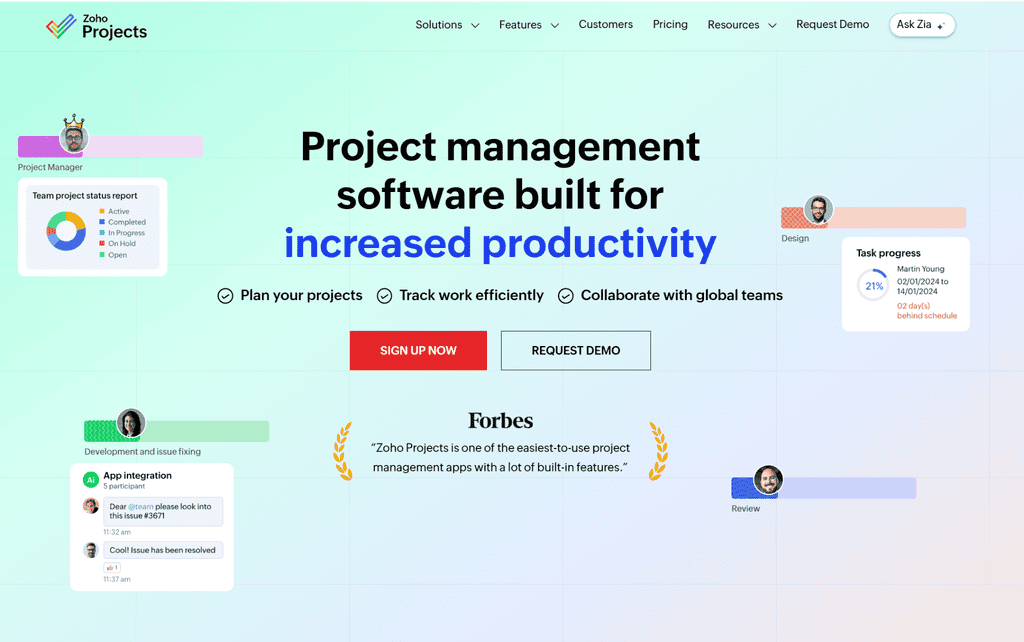
Zoho Projects is worth trying if you want more than a basic task list without paying a high monthly fee. It covers project planning, deadlines, time logs and reports, with extra options as your business grows.
For small businesses already using Zoho apps, Zoho Projects may be a particularly good fit. It can handle more detailed schedules, including gantt charts — a timeline showing which tasks happen when — without costing as much as some rivals.
Pros
- Low entry price for a broad set of tools.
- Paid tiers support unlimited projects.
- Useful for project planning and time tracking.
Cons
- Some settings take time to learn.
- The layout may feel less simple than Trello.
- Advanced planning still needs the right plan and setup.
Zoho Projects pricing
| Plan | Price | What you get |
| Free | Free | Up to 5 users and 3 projects |
| Premium | $4/user/month | Unlimited projects, time logs and extra views |
| Enterprise | $9/user/month | More controls and reporting |
| Ultimate | $14/user/month | More dashboards and capacity tools |
Start here: Test Zoho Projects with one project and a real deadline. If you already use Zoho, check how well the apps work together before buying anything extra.
6. Wrike — Best for Work That Needs Lots of Reviews
Rating: ★★★½ (3.5/5)
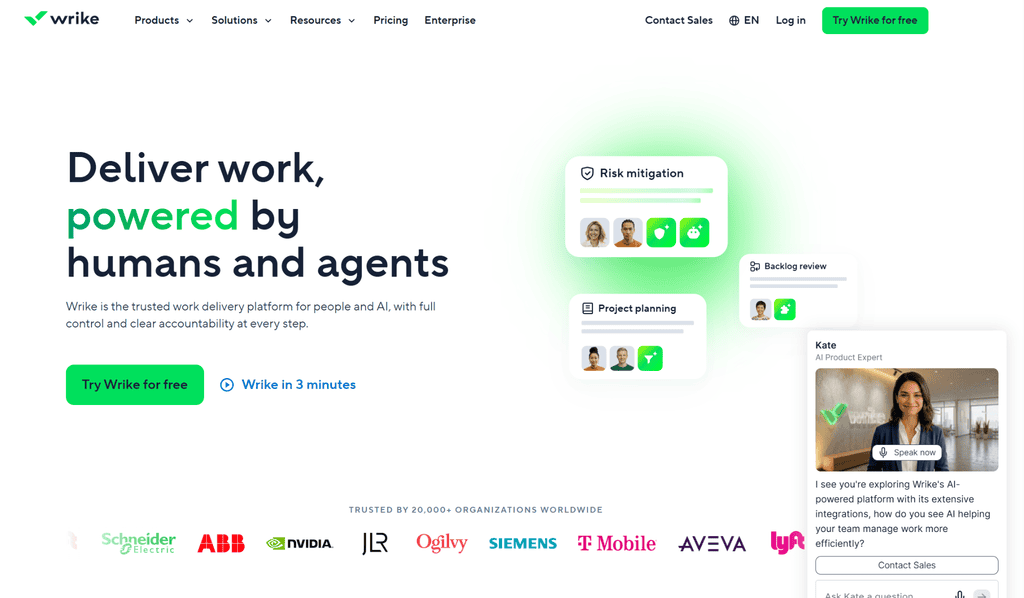
Wrike makes sense when projects have many steps, people and approvals. Think of creative teams producing ads, videos or designs that need several rounds of feedback before they go live.
You can build custom workflows, set up forms for new requests and use dashboards to spot delays. Wrike can handle complex workflows and complex projects, but there’s a trade-off: it has a steeper learning curve than Trello or Asana. More buttons don’t always mean more work gets done.
Pros
- Strong tools for reviews and approvals.
- Useful for resource planning and detailed schedules.
- Flexible reporting for large teams.
Cons
- More setup and training.
- Some key features cost more.
- Too much for a business with straightforward task lists.
Wrike pricing
| Plan | Price | What you get |
| Free | Free | Basic task and project tracking |
| Team | $10/user/month | Dashboards and project schedules |
| Business | $25/user/month | More workflow options and controls |
| Pinnacle / Apex | Custom quote | Advanced reports, capacity tools and security |
Start here: Take one job that usually gets stuck waiting for approval. Put it through Wrike from request to sign-off and see whether it saves emails and chasing.
7. Airtable — Best for Organizing Lots of Information
Rating: ★★★½ (3.5/5)
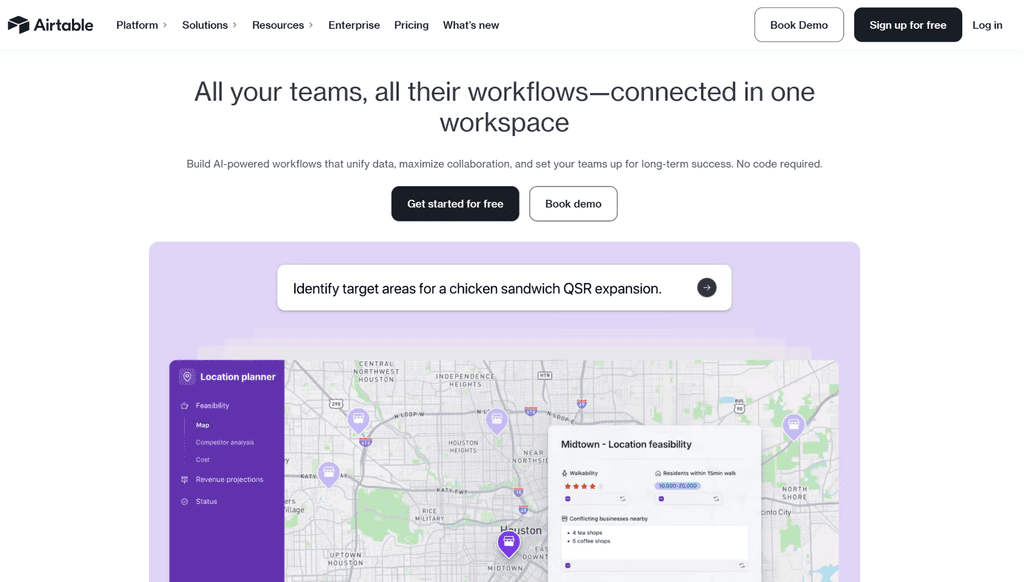
Airtable is part spreadsheet, part database. It helps you link information that belongs together. For example, you can connect each client to their projects, contacts, content and deadlines in a single workspace.
That’s what people mean by relational databases.
It’s useful, but you don’t need to call it that in the office. Airtable is a strong fit when your business handles lots of related information; it’s less suitable if you only need someone to tick off a task.
Pros
- Flexible ways to organize connected information.
- Handy for content plans, customer records and stock lists.
- Forms and automations can cut down manual updates.
Cons
- You need to design the system yourself.
- Editing seats can get expensive.
- It isn’t the quickest way to set up a basic task board.
Airtable pricing
| Plan | Price | What you get |
| Free | Free | Basic databases and views |
| Team | $20/user/month | More records, automation and sharing |
| Business | $45/user/month | Higher limits and extra controls |
| Enterprise Scale | Custom quote | Larger-scale security and management |
Start here: Build a small table of five clients and their projects. Link the records and see whether it solves a real problem. If not, don’t pay for a fancy spreadsheet.
8. Jira — Best for Software Developers
Rating: ★★★ (3/5)
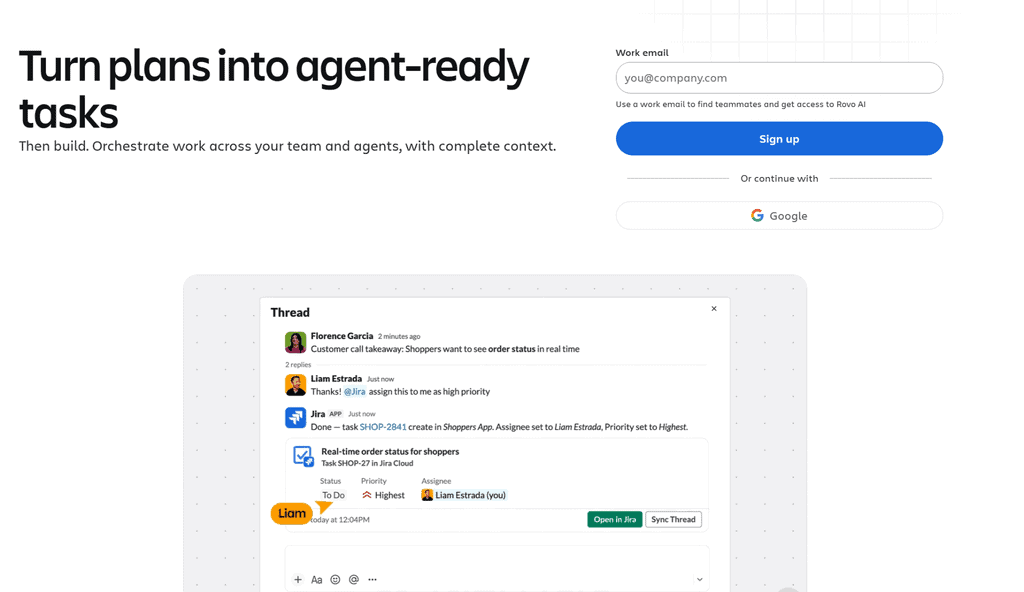
Jira is built for software development. It helps development teams record bugs, plan new features and track what needs fixing before a product is released.
For engineering teams and software teams, that can be exactly what’s needed. A product team can plan work in stages and see which bugs are still open. But if you’re running a bakery or a marketing agency, Jira may feel like buying an aircraft cockpit to drive to the supermarket.
Pros
- Designed for software development projects.
- Strong bug tracking and kanban boards.
- Flexible rules for technical teams.
Cons
- A steep learning curve for many business users.
- Too many settings for basic daily work.
- Some planning and reporting features require upgrades.
Jira pricing
| Plan | Advertised price | What you get |
| Free | Free | Up to 10 users |
| Standard | From $7.91/user/month | More permissions and automation |
| Premium | Check live quote | Wider planning and support features |
| Enterprise | Custom quote | Large-scale security and controls |
Start here: Ask your developers to move one sprint or bug list into Jira. If they love it but the rest of your staff look confused, use it for software development only.
How to Choose a ClickUp Replacement Without Starting Another Headache
You don’t need comprehensive project management just because the sales page says you do. Pick the essential features you use every week. Then test one real project.
Step 1: Work Out What You Actually Need
| If you keep saying… | Try this first |
| “Nobody knows who’s doing what.” | Asana |
| “I want to see everything on one screen.” | monday.com |
| “We manage clients and charge for our time.” | Teamwork.com |
| “Just give me a board with tasks.” | Trello |
| “I need planning tools on a budget.” | Zoho Projects |
| “Every design needs three approvals.” | Wrike |
| “Our client and project information is all over the place.” | Airtable |
| “We’re building software and tracking bugs.” | Jira |
Think about your team size too. Smaller teams may value ease of use more than portfolio management. Large enterprises may need permissions, resource allocation and reporting across dozens of projects. Neither group should pay for features it won’t use.
Step 2: Test the Boring Stuff
Fancy demos are fun. Tuesday afternoon is the real test. Can your project manager create a job, give it to someone and see whether it’s finished?
If your business handles client work, test how easily the platform supports your onboarding workflow too. A clear process to improve your client onboarding helps you collect project information, assign responsibilities and establish deadlines before work begins.
Check these essential features with real work:
- Can you assign tasks and track work without training everyone for hours?
- Can you add custom fields only when they’re useful?
- Can you find the latest file and conversation? A message board or comment thread is no use if nobody can find it.
- Can you see what’s late in real time?
- Can you check work on your phone?
If your team uses Google Workspace, test Google Docs and Drive links. Check native integrations before adding paid connectors. And if you rely on video conferencing, make sure meeting links and notes are easy to share; most of these apps aren’t replacements for Zoom or Meet.
Step 3: Check the Full Price
A low headline price doesn’t always mean a low bill. Look at paid plans, seat minimums, guest access, automation limits and extra charges. Some providers offer a free trial without asking for a credit card, but check the sign-up terms.
The same principle applies when setting your own service rates. Understanding freelance pricing trends can help you balance what you charge clients against the growing cost of software, subscriptions, and other business expenses.
For complex projects, ask whether portfolio management, resource planning and reports are included. You don’t want to find out halfway through that the one feature you need costs twice as much.
Step 4: Move One Project, Not Your Whole Business
Start with a project that matters, but isn’t a disaster if the test goes wrong. Move its task lists, due dates, files and comments. Check the activity log if you need a record of past changes.
If you’re testing the new platform with a client project, start with a clearly defined scope of work. Using freelance proposal templates can help you organize deliverables, deadlines, and client expectations before transferring everything into your new project management tool.
Give your team members a week to use it in their daily work. If you spend more time fixing the tool than finishing the project, keep looking. A flexible workspace should make work easier, not become another full-time job.
What About Microsoft Planner or Open-Source Tools?
Microsoft Planner may be worth a look if your business already lives in Microsoft 365. It’s a simpler option for shared tasks, although its planning features depend on your subscription.
An open source alternative may suit businesses that want more control over hosting and data. Just remember that someone still needs to set it up, secure it and maintain it. “Free software” doesn’t always mean “free time”.
Our Verdict: Which ClickUp Alternative Should You Try First?
For most businesses frustrated with ClickUp, Asana is the best alternative to test first. It’s clear, practical and doesn’t ask you to build an entire system before assigning a task.
If you want visual boards, try monday.com. For agency work, Teamwork.com is an ideal choice. Trello is the best choice when you want to start today with almost no setup. Zoho Projects is a good fit when price matters. Wrike, Airtable and Jira are worth choosing for more specific needs.
The right alternative isn’t the one with the longest feature list. It’s the one your team will actually open tomorrow morning.

FAQs About ClickUp Alternatives
What are the best ClickUp alternatives for small businesses?
Asana, Trello and monday.com are good places to start. Trello is simplest, Asana offers more structure and monday.com works well for visual project planning. The best choice depends on how much detail you need.
Which tool is easiest to learn?
Trello wins for pure ease of use. Its cards and columns are easy to understand, even for first-time users. Asana is also approachable if you need more than a basic board.
Is there a free ClickUp alternative?
Yes. All eight tools listed here have a free option, although limits differ. For personal tasks or a tiny team, Trello and Asana are sensible starting points. A free plan isn’t always enough for growing teams.
Which ClickUp alternative is best for agencies?
Teamwork.com is an ideal choice if you need to track hours, manage clients and watch project budgets. Asana can still work well if your main concern is who does what and when.
Can these tools manage complex projects?
Yes, but in different ways. Asana, Wrike and monday.com can handle complex projects with multiple people and deadlines. Jira is better suited to software development, while Teamwork.com focuses on client delivery.
Do I need portfolio management?
Probably not if you run just a few projects. Portfolio management means seeing several projects together, rather than opening them one by one. It becomes more useful when a project manager is responsible for many teams or deadlines.
Which one is best for project planning on a budget?
Zoho Projects offers low-cost paid options with scheduling and time tracking. Trello is cheaper if all you need is a board, but it has fewer tools for detailed project planning.
Can I replace ClickUp with one single platform?
Possibly. First list your essential features, including file sharing, knowledge management, workflow automation and reports. No app does everything equally well. You may still need separate tools for documents, meetings or specialist work.
Should I move everything out of ClickUp at once?
No. Test one project, make sure your files and deadlines move across properly, then decide. Switching tools should save time — not become your team’s next six-month project.